

This page covers flow-level ASR configuration. For dynamic ASR biasing from Python functions, see
conv.set_asr_biasing(). Setting up ASR biasing in the flow editor does not require code.When to use it
Structured input
The user is likely to say a booking code, date, or other structured value.
Frequent misrecognitions
You see transcription errors on names, codes, or numbers.
Unclear audio
The agent is guessing incorrectly from noisy or accented audio.
Bias options
Pick the bias that matches what the user is about to say — not the wording of the prompt.
Custom keyword fields can also be added to bias transcription toward domain-specific vocabulary — product names, menu items, medical terms, and so on.
Configure it on a step
1
Open the step editor
In the Flow Editor, select the step where you want to bias transcription and open the step editor on the right.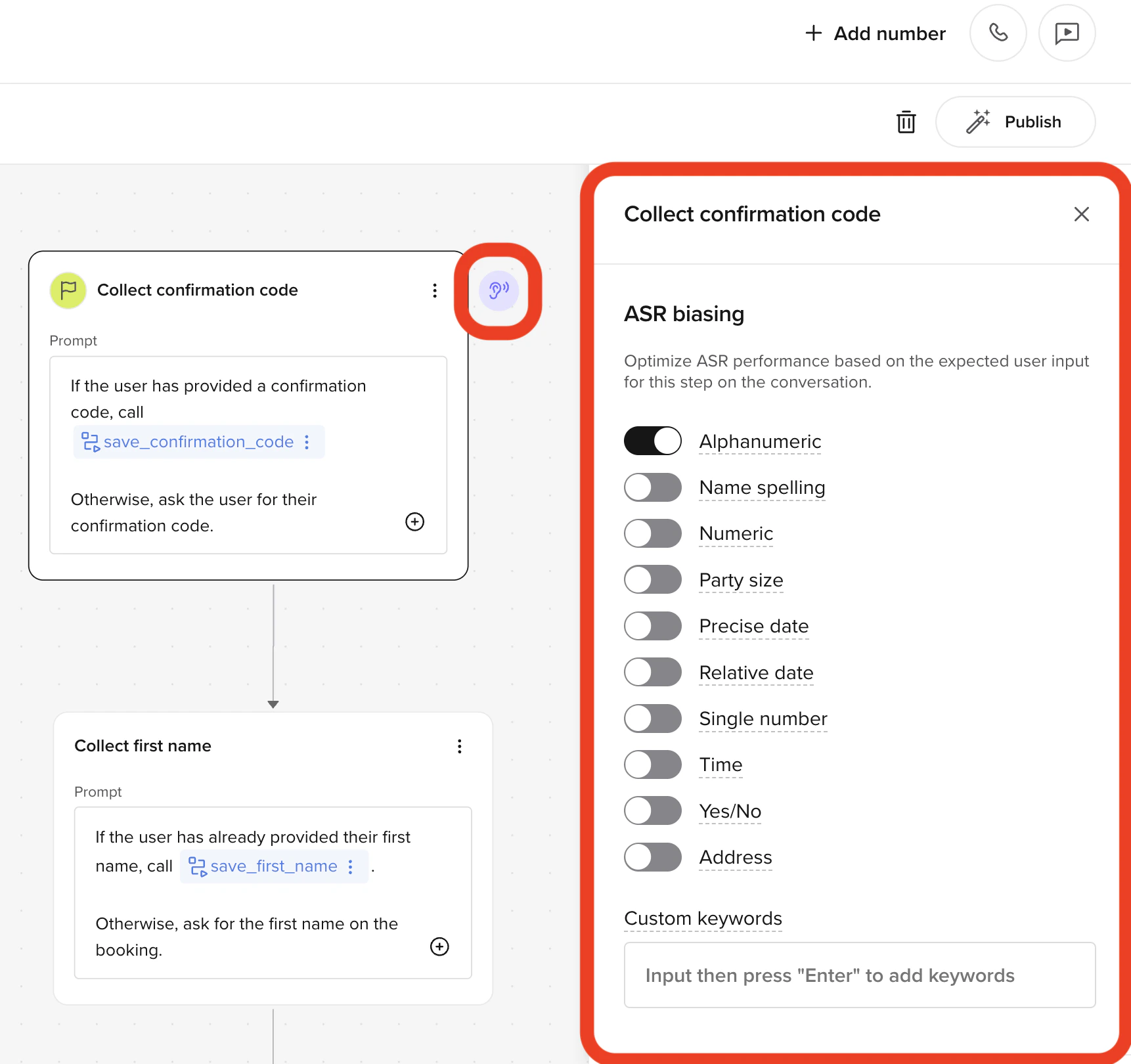
2
Pick the input type
In the ASR biasing panel, toggle on the option that matches what the user is expected to say (see the table above).
3
Add custom keywords (optional)
Add domain-specific vocabulary as custom keywords — product names, menu items, dish names, medical terms. Bias applies on top of the selected input type.
4
Test with real voice input
Place a test call and confirm the transcription matches what was said. Iterate on the bias type and keywords if not.