

Configuring voice CSAT
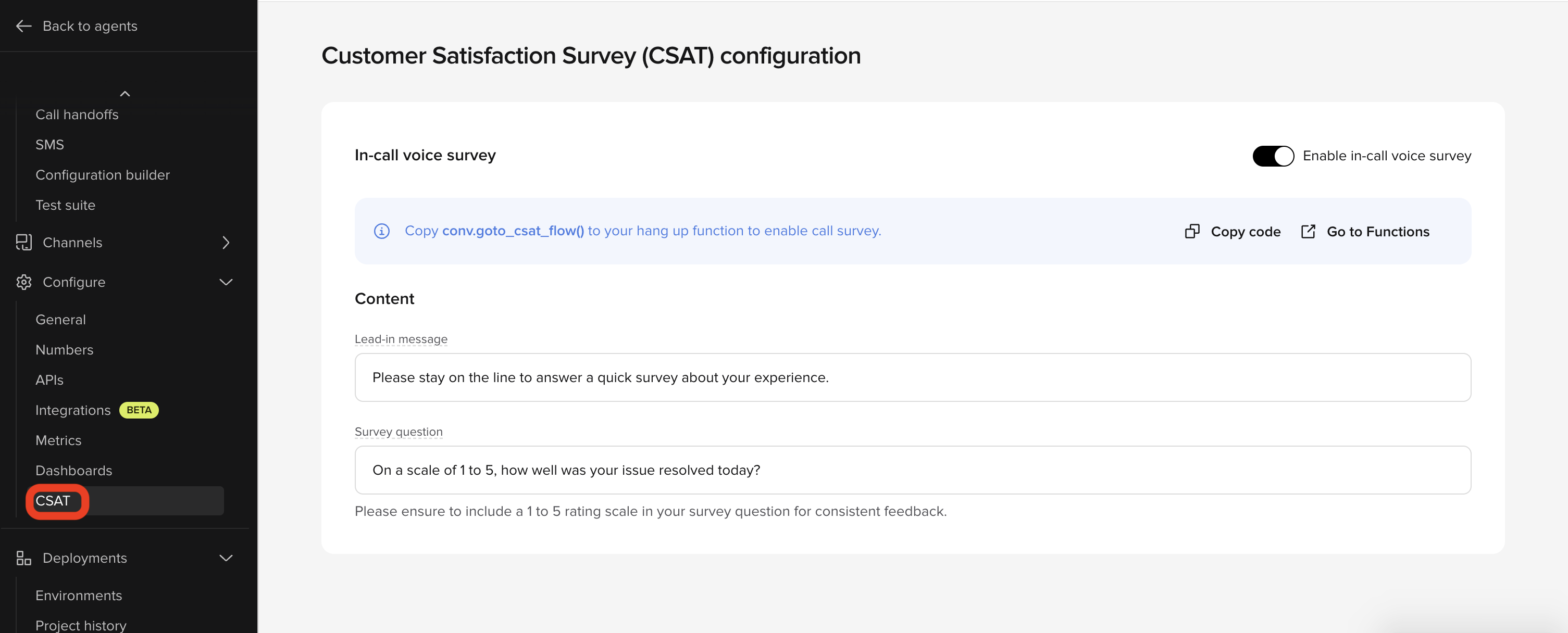
Voice CSAT is configured from the CSAT settings under the Analyze section of the sidebar.Step 1: Enable the survey
At the top of the CSAT settings page, toggle Enable in-call voice survey to on. This activates the CSAT feature for your project. Until enabled, no surveys run.Step 2: Connect to your end function
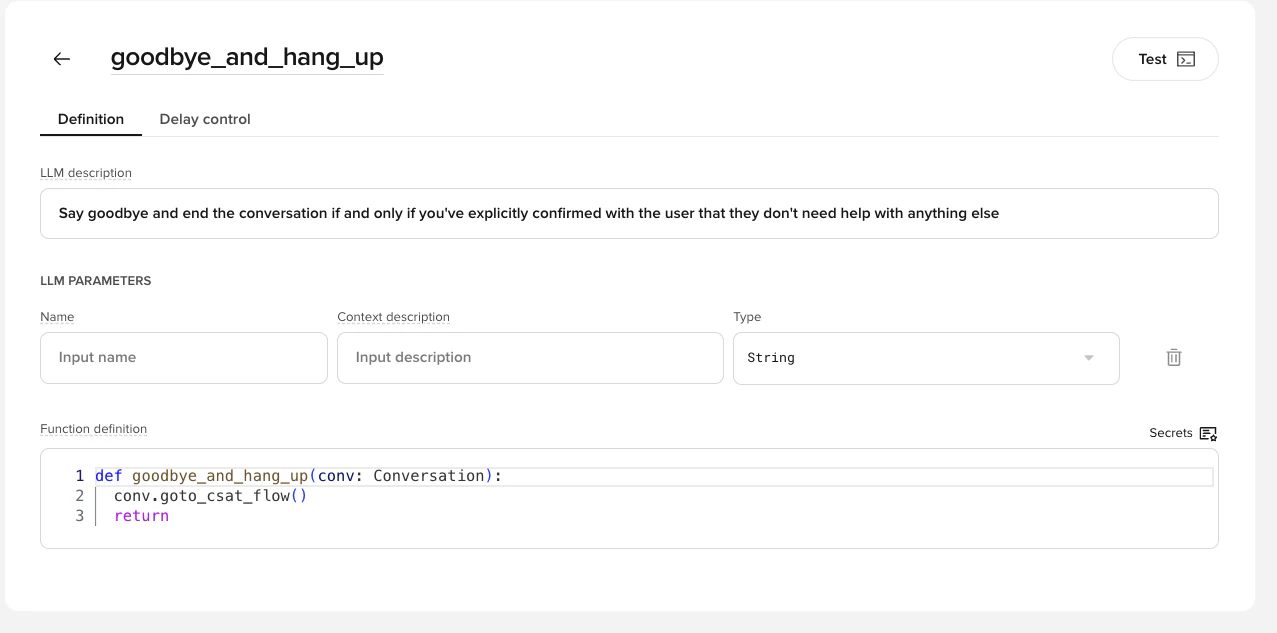
Addconv.goto_csat_flow() to your end function in Tools. This instructs the agent to route users into the survey flow before ending the conversation.
Here is the complete function definition:
Step 3: Define survey content
Configure the two text fields in the Content section:string
What the agent says before asking the question. Keep it short and clear to prevent hang-ups.Example: “Please stay on the line to answer a quick survey about your experience.”
string
The actual rating question. You must include a 1–5 scale in the wording – the system does not infer a scale.Example: “On a scale of 1 to 5, how well was your issue resolved today?”
Configuring webchat CSAT
Webchat CSAT shows a star-rating survey (1–5, with a skip option) in the chat widget at the end of a conversation. It’s configured from the CSAT survey card on your webchat channel’s settings. Unlike voice, no end-function wiring is required — once enabled with title and question text configured, the survey shows automatically at the end of a conversation.Step 1: Enable the survey
Toggle Enable webchat survey at the top of the CSAT survey card. This activates the CSAT feature for your project’s webchat channel. Until enabled, no surveys run.Step 2: Define survey content
Configure the survey text for each of your agent’s languages — one section per language, with the default language required and additional languages optional:string
The heading shown at the top of the survey. Maximum 60 characters.Default: “Rate your chat”
string
The rating question shown to the customer, answered on a 1–5 star scale.
Maximum 200 characters.Default: “How would you rate your experience?”
How CSAT works
Voice
- Customer completes conversation - The agent finishes helping the customer
- Lead-in message - Agent introduces the survey
- Survey question - Agent asks the 1–5 rating question
- Customer responds - Customer provides a rating
- Data collection - Rating is stored and appears in your dashboards
Webchat
- Customer ends the conversation - The conversation reaches its end
- Survey appears - A star-rating modal opens in the widget, showing your configured title and question
- Customer responds - The customer picks a 1–5 star rating, or skips the survey. If they don’t respond, the survey is automatically skipped
- Data collection - The rating (or skip) is stored and appears in your dashboards
CSAT best practices
Tips for effective surveys:- Keep it short - Customers are more likely to respond to brief surveys
- Be clear about the scale - Explicitly state what 1 and 5 mean in your survey question
- Natural language - Write messages that sound conversational, not robotic
- Test thoroughly - Try different phrasings in Sandbox before publishing
Viewing CSAT data
Agent Studio dashboards
CSAT scores appear in your analytics dashboards within Agent Studio:- Navigate to Analyze > Enterprise dashboards
- Select the CSAT dashboard
- View metrics including:
- Average CSAT score
- Score distribution (1-5)
- CSAT trends over time
- Response rate
- CSAT correlation with containment and resolution rates
Conversation-level data
Individual CSAT scores are also visible in conversation records:- Go to Analyze > Conversations and select the Voice scope
- Filter the conversations table to show only conversations with CSAT responses
- Select a conversation
- View CSAT metrics in the conversation details
Conversations API
CSAT scores are included as structured fields in Conversations API responses. You can export this data for:- Integration with your existing analytics or reporting tools
- Building custom dashboards
- Ingesting into client systems
Wren
You can query CSAT data by asking Wren for custom analysis and reporting. Wren has access to all CSAT metrics and can generate custom reports.Tracked metrics
The following metrics are automatically tracked for CSAT surveys:Voice CSAT metrics
CSAT_OFFERED- Whether the survey was offered (boolean)CSAT_ACCEPTED- Whether the customer accepted the survey (boolean)CSAT_DENIED- Whether the customer declined the survey (boolean)CSAT_SCORE- Customer rating (numeric 1-5)CSAT_FREE_FEEDBACK- Verbatim customer feedback (string, if collected)CSAT_COMPLETED- Whether the survey was completed (boolean)
Webchat CSAT metrics
CSAT_OFFERED- Whether the survey was shown (boolean)CSAT_ACCEPTED- Whether the customer rated the survey (boolean)CSAT_DENIED- Whether the customer skipped the survey (boolean)CSAT_SCORE- Customer rating (numeric 1-5)CSAT_COMPLETED- Whether the survey was completed (boolean)
CSAT_FREE_FEEDBACK does not apply.
These metrics are attached to the original conversation record and can be used for analysis and reporting.
Rating scale
The standard CSAT scale is 1-5:CSAT calculation methods
CSAT scores can be calculated in different ways depending on your reporting needs: Standard average Simple average of all CSAT scores (e.g., 4.06 out of 5.0). This is what PolyAI dashboards report by default. Net Promoter style (client-side) Some organizations apply a Net Promoter Score-style calculation to their exported CSAT data. This is not calculated by PolyAI – you would apply it to your own data exports:- CSAT Score = (Promoters - Detractors) / Total responses
- Promoters: Scores of 4-5
- Detractors: Scores of 1-2
- Neutral: Score of 3 (not included in calculation)
Troubleshooting
CSAT survey not triggering
CSAT survey not triggering
- Check that
conv.goto_csat_flow()is called in your end function - Ensure the end function is being executed (check conversation logs)
Customers not responding to survey
Customers not responding to survey
- Simplify your survey messages
- Make the scale clearer (explicitly state what 1 and 5 mean)
- Consider the timing - surveys work best after successful resolutions
CSAT data not appearing in dashboards
CSAT data not appearing in dashboards
- Allow up to 15 minutes for data to appear
- Verify the conversation completed successfully
- Check that the customer actually provided a rating
Limitations
- The rating scale is fixed at 1-5
- Only one CSAT survey can be triggered per conversation
- Survey must be triggered from the end function (voice only)
For custom survey requirements or multi-question surveys, contact your PolyAI representative to discuss advanced options.
Related pages
End tool
Add conv.goto_csat_flow() to trigger surveys at conversation end.
Self-serve dashboards
View CSAT scores alongside containment and other key metrics.
Analyze conversations
Ask Wren to query CSAT data and surface satisfaction trends.