Sign up self-serve at studio.poly.ai, build your first agent free, and deploy it in minutes.
Create an account, build an agent, add knowledge, test it, and publish. Five steps.
In a hurry?Wren is the fastest way to scaffold an agent. Describe what you want and it generates flows, topics, entities, and settings on a Branch you can review and publish. The manual steps below still work if you’d rather build it by hand.
A use case in mind (e.g., customer support, reservations, FAQ)
1
Create your account (~1 min)
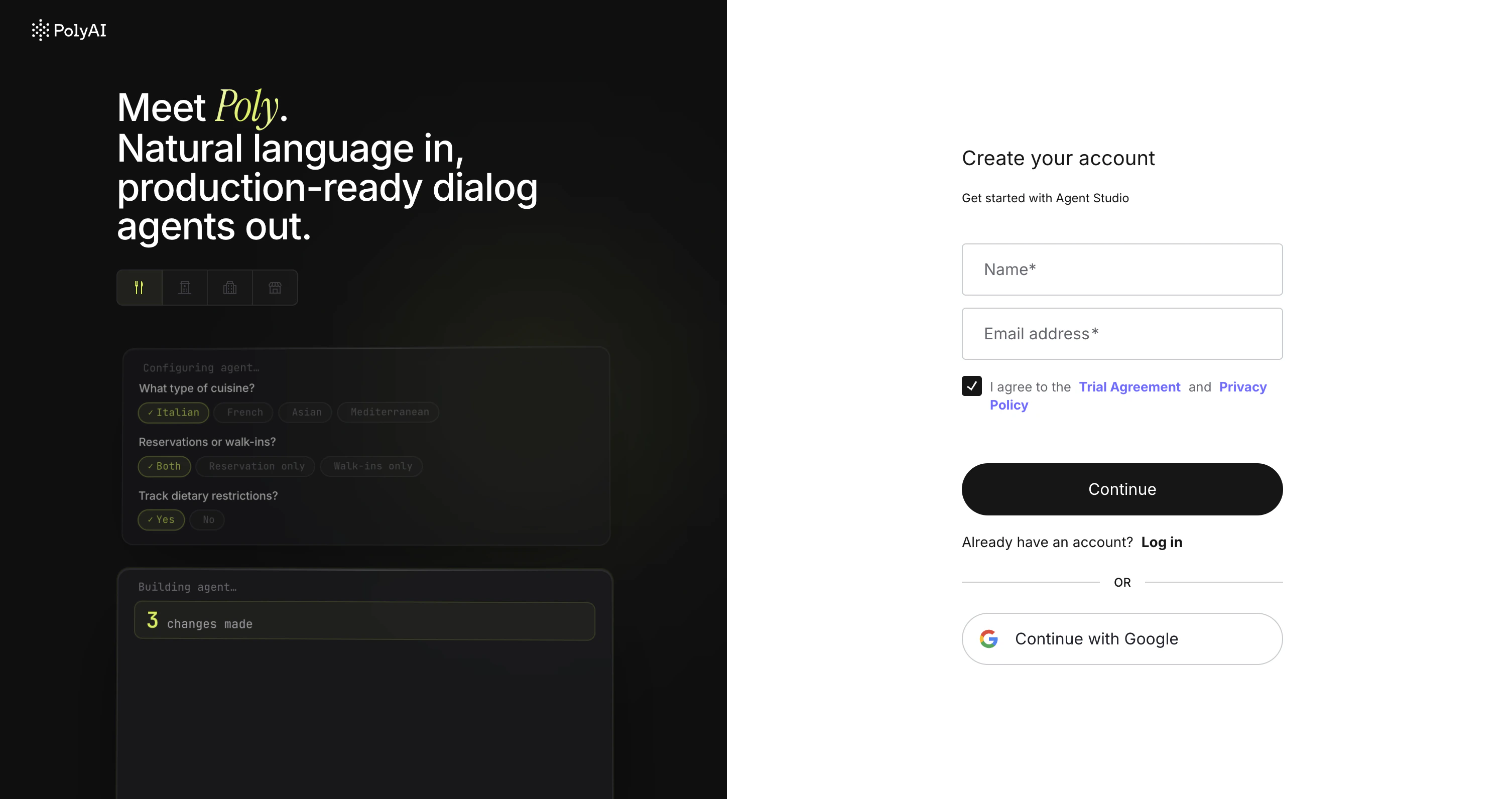
Go to the sign-up page and create your PolyAI account.
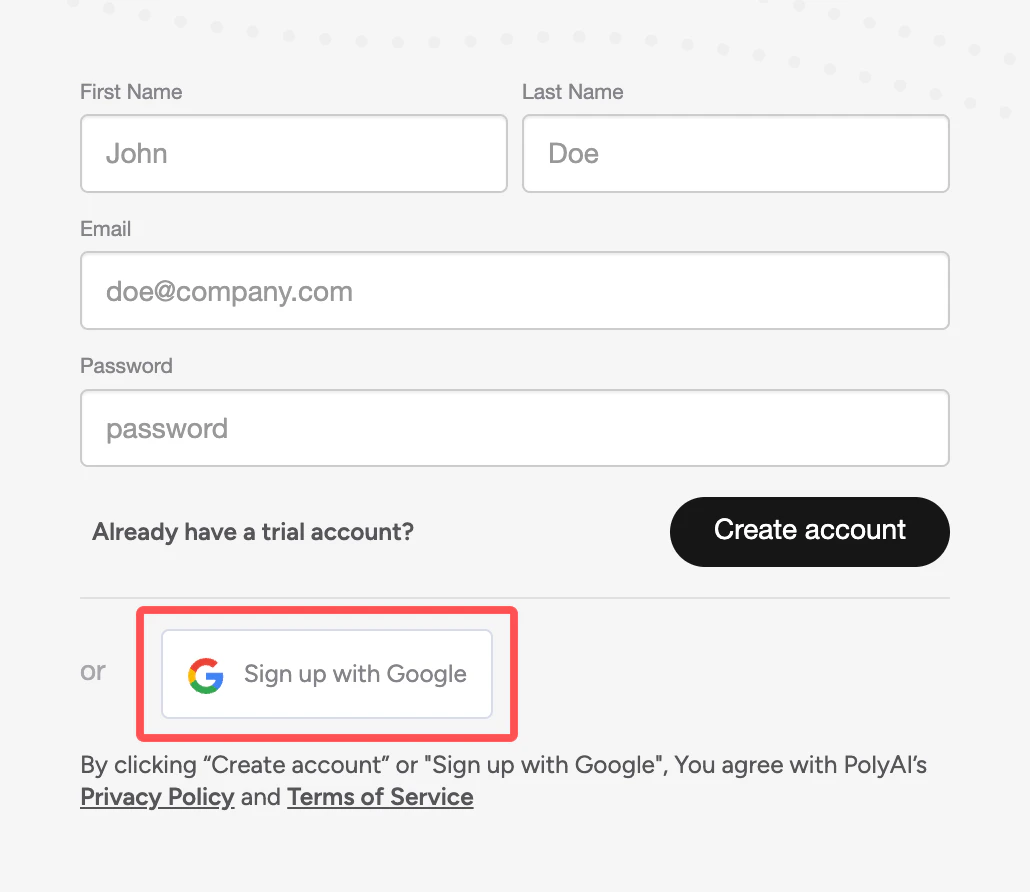
Google SSO
Email and password
Click “Sign up with Google”
Select your Google account or enter your credentials
Click “Continue” to authorize PolyAI
Sign in with Google SSO
Enter your first name, last name, and email address
Create a password (at least 12 characters, with 3 of 4 character types: lowercase, uppercase, numbers, special characters)
Click “Create account” and verify your email
Create an account with email and password
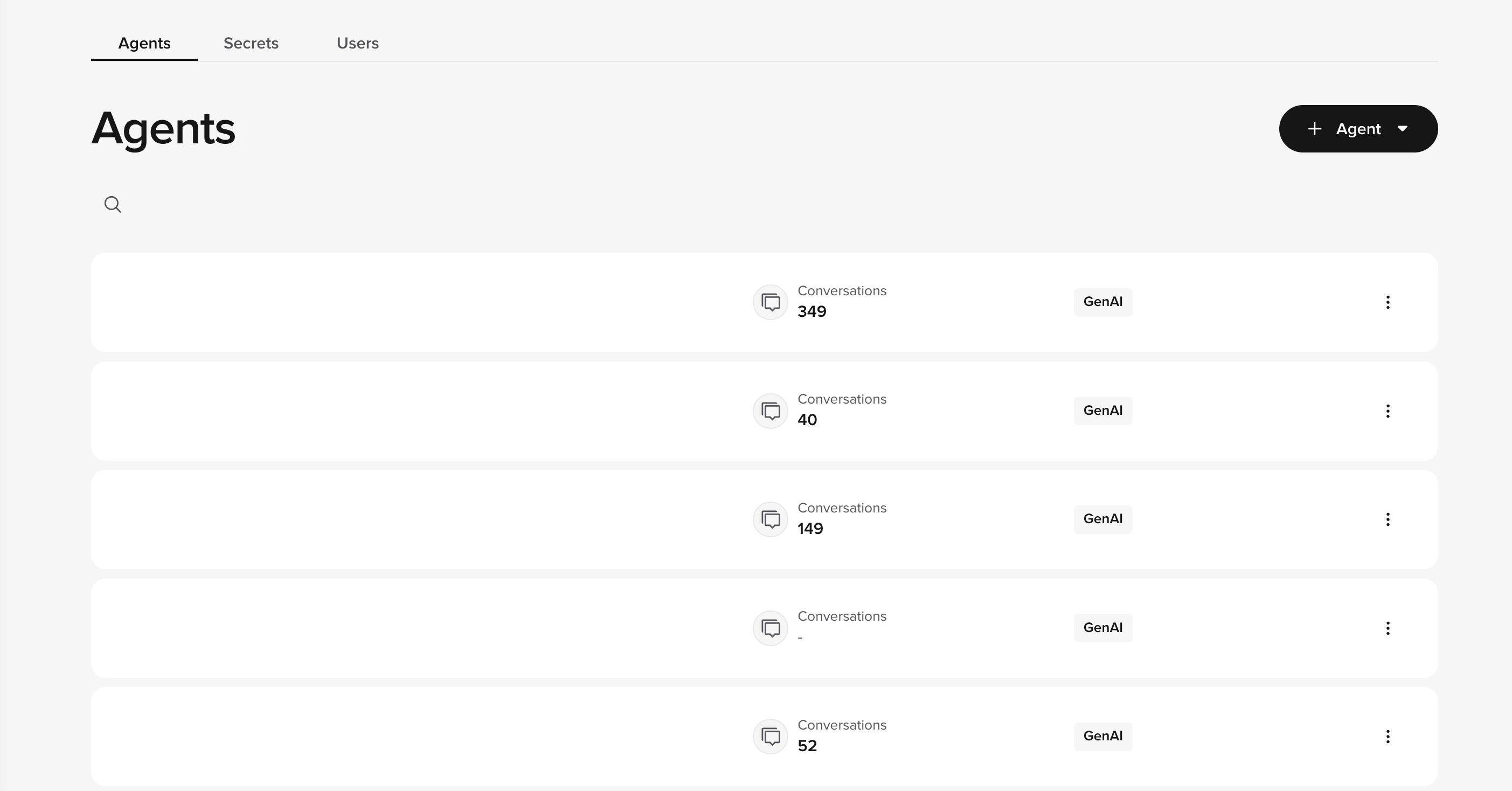
Once signed in, you’ll land on the Agent Studio home page.
2
Create your agent (~2 min)
From the home page, click + Agent to start the agent creation wizard. You can create a blank agent or import an existing configuration.Configure the basics:
Agent name, internal identifier for your project
Response language, primary language for responses (see multilingual support for additional languages)
Welcome greeting, first message users receive (can be customized later in agent settings)
Click Next to enter Agent Studio.
Agent creation wizard
You can also duplicate an existing agent by clicking the three-dot menu next to any agent on the home page.
3
Add knowledge (~5 min)
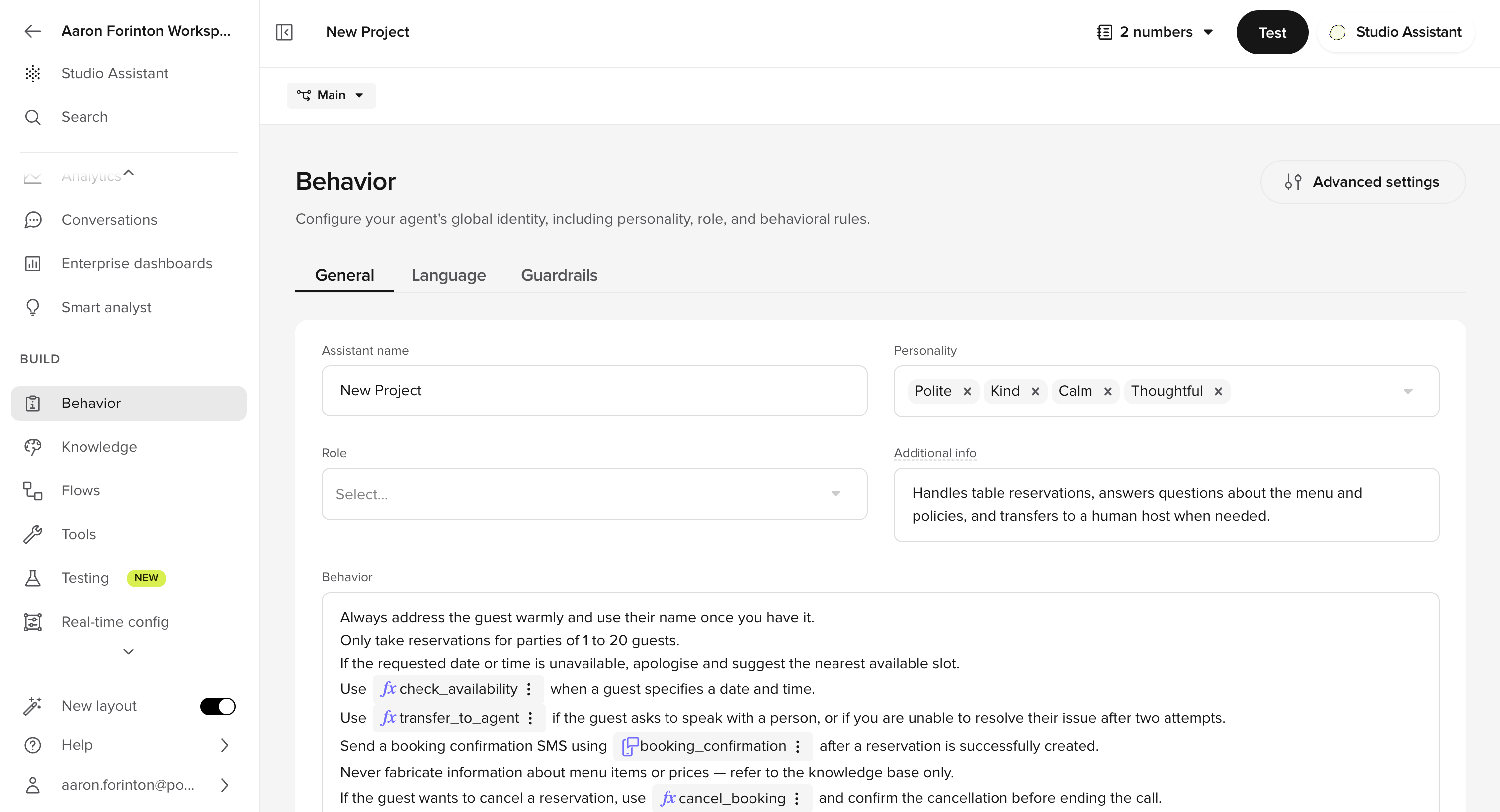
Navigate to Knowledge > FAQs in the sidebar.Click Add topic and provide:
Topic name, what this topic covers (e.g., “Store hours”)
Sample questions, up to 20 ways users might ask (e.g., “When are you open?”)
Answer, the response your agent should give
Click Save to create the topic.
Add a knowledge base topic with sample questions and an answer
Changes save to your Branch in Sandbox as you go, ready to test. Learn more about environments and versions.Optional: Add more topics to expand your agent’s capabilities. You can also:
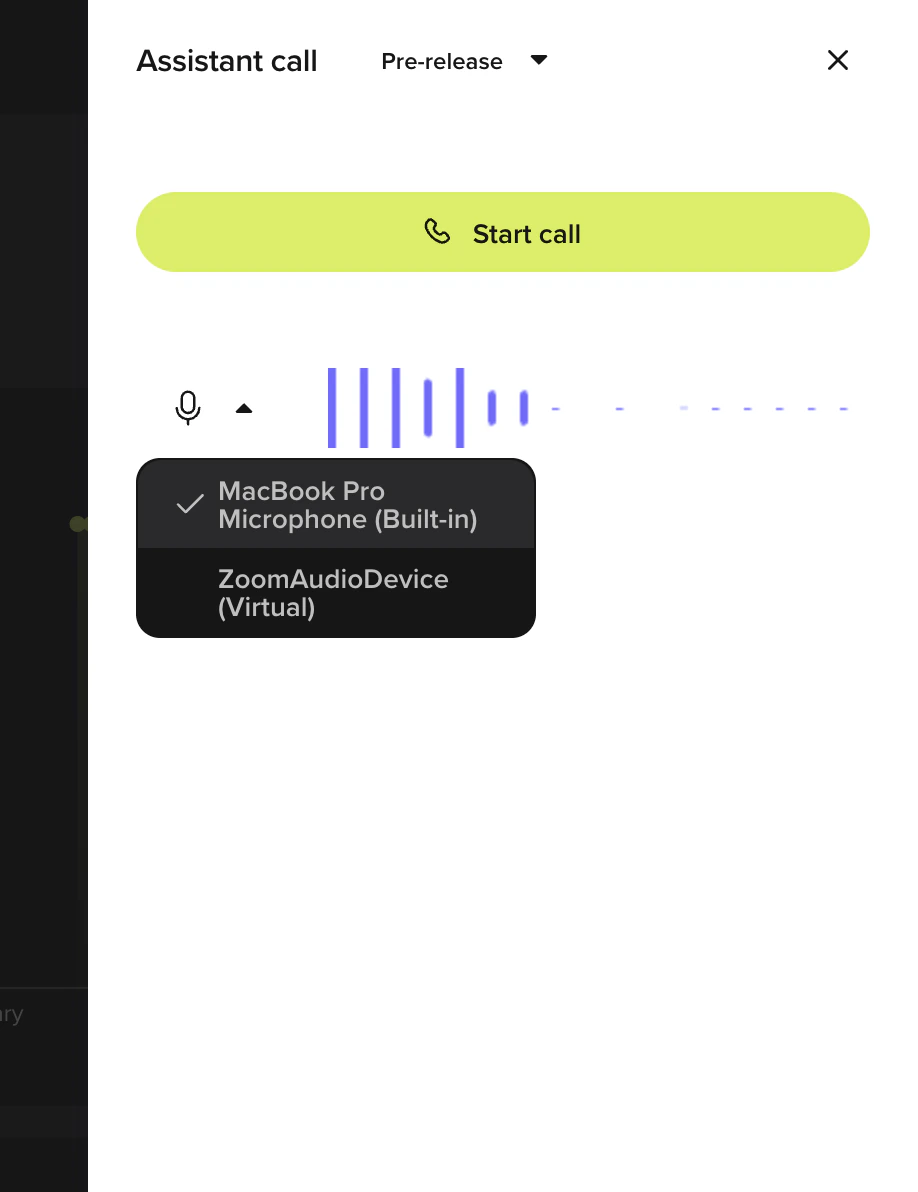
Test the way a customer would by calling a connected number. Phone numbers connect to Staging and Live only. Publish your agent first (step 5), or move your Branch to Staging.
Go to Voice > Numbers in the sidebar
Click “Add number” to purchase a number or connect an existing one
Optional: move your Branch to Staging for user acceptance testing
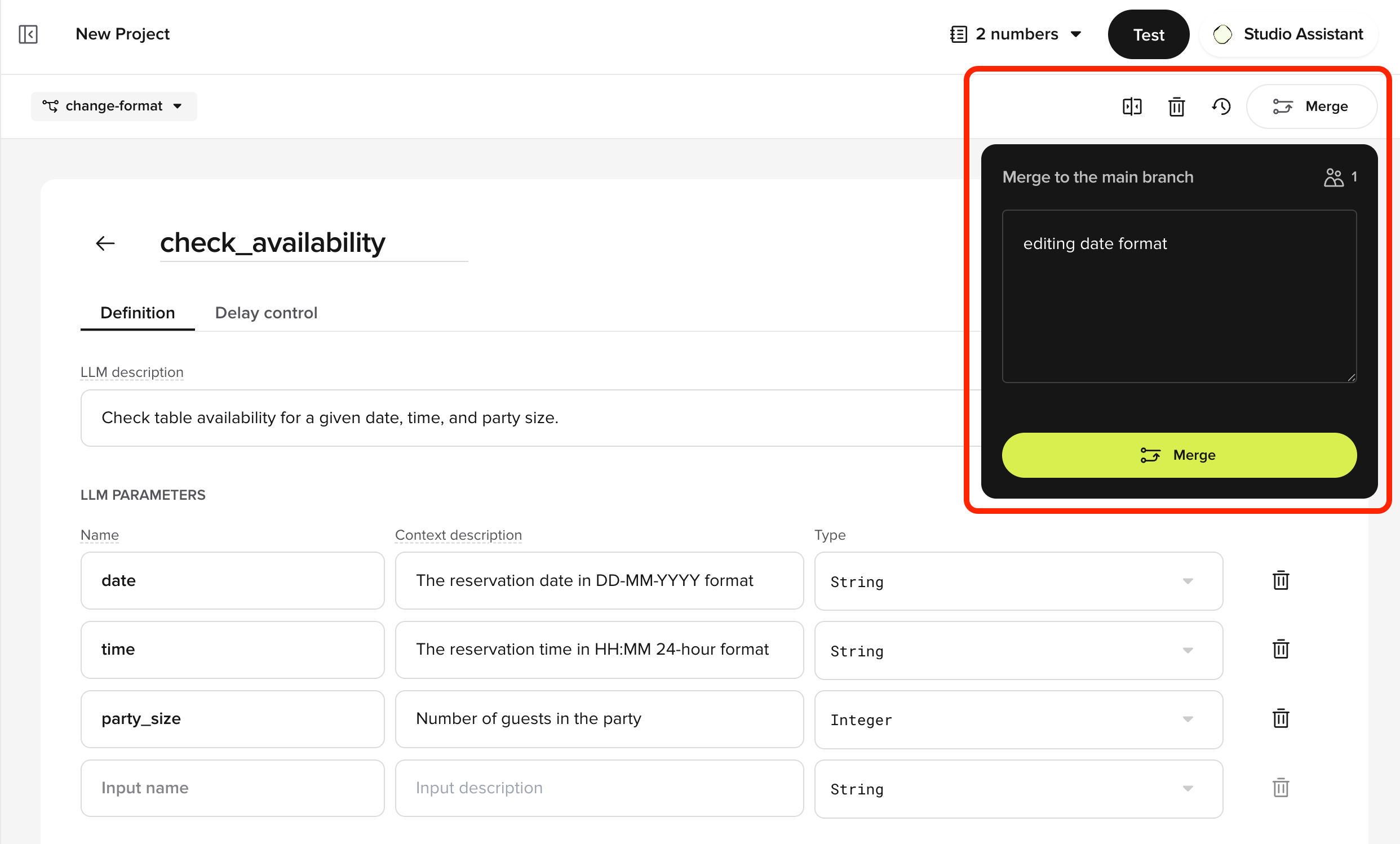
Click Publish (top-right) to put your Branch on Live
Staging and Live can each have their own phone number and configuration. Sandbox has no phone number, so you test there over an in-app call or chat.
Publish onto Live to go live
When you publish, your changes merge onto Live. If a change goes wrong, you can roll Live back to any previous version in one step. See the Deployments guide for details.
Each conversation turn follows a pipeline: ASR (speech to text) → LLM (knowledge retrieval and response generation) → TTS (text to speech). See architecture for a detailed breakdown, or processing order for the step-by-step flow.
Last modified on October 9, 2026
Was this page helpful?
⌘I
Assistant
Responses are generated using AI and may contain mistakes.