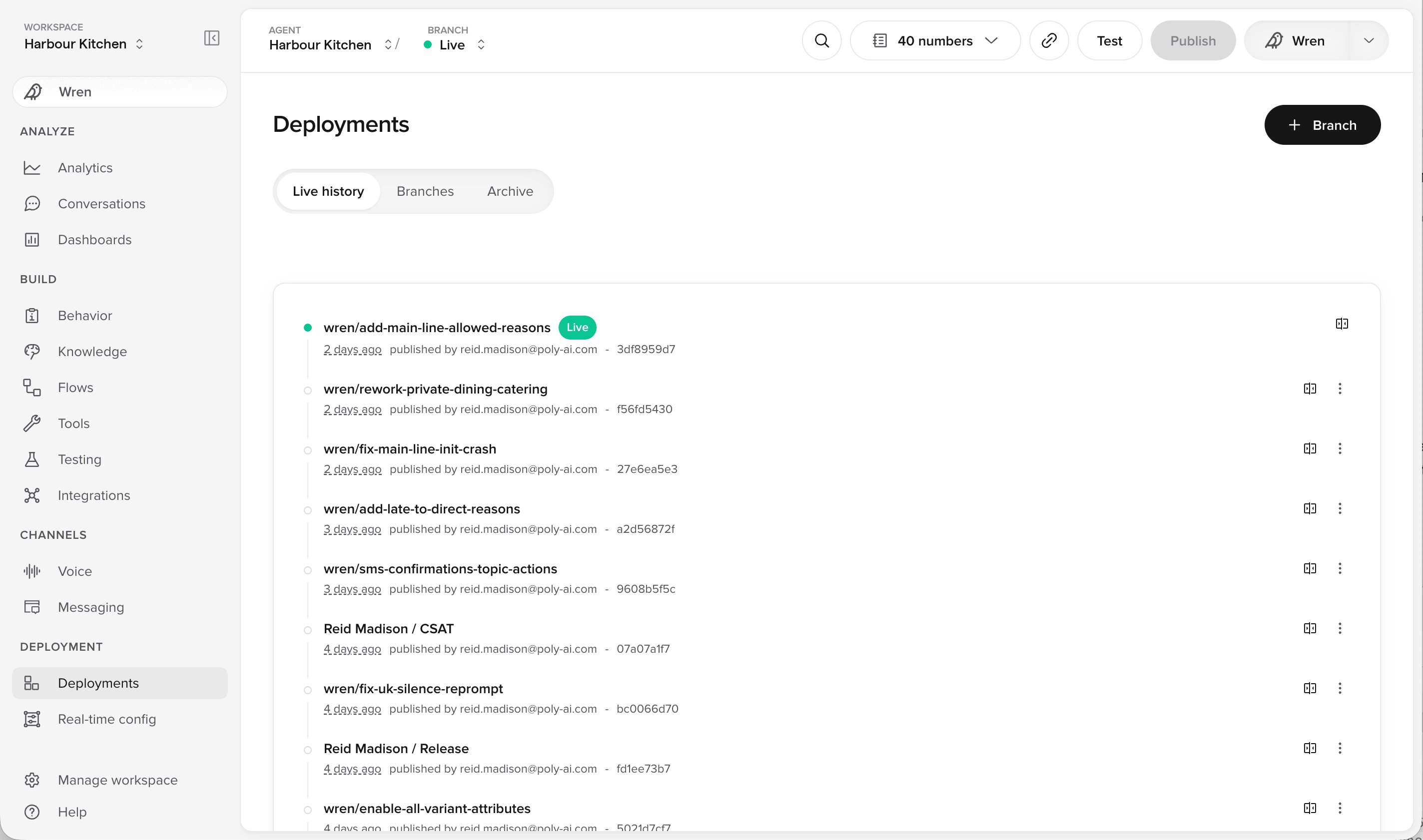
New to environments? Start with the Environments tutorial for a hands-on introduction. For detailed workflows and best practices, see Version management.
Creating a version
A version is created whenever changes are made to an agent. A draft banner appears at the top of the page, allowing you to:- Delete: Revert to the most recent published version.
- Publish: Save the draft as a version, optionally adding a description highlighting changes made and any notes for future collaborators.


Promoting a version
Promotion moves a version from one environment to the next. The environments include Sandbox, , and .Pre-release
Pre-release is used for user acceptance testing (UAT). It is a stable staging area where versions are tested before being released to production.- Go to Deployments > Environments in the sidebar.
- Click the Options Menu next to the desired version.
- Select Promote to Pre-release.
Live
The live environment, also referred to as production, is where your agent handles real traffic.- Go to the Pre-release tab in Deployments > Environments.
- Click the overflow menu (three vertical dots) next to the version.
- Select Promote to Live.
- Confirm your selection by checking the box and clicking Promote.
- Confirm
- Complete

Comparing versions and environments
Before promoting changes, you can compare versions across environments using a side-by-side diff view.- Go to the Deployments section and open Environments or Project History.
- Select a version and click Compare to view differences between Sandbox, Pre-release, and Live.
- Versions appear in reverse chronological order (newest first) for easier navigation.
Rolling back to a previous version
If an issue arises with the promoted version, you can roll back to a previous version:- Go to Deployments > Environments in the sidebar.
- Select the Options Menu for the desired version.
- Click Rollback.
- Confirm the rollback.
- Initiate
- Confirm

Testing your agent
Main page: agent Chat You can test your agent by interacting with it in different environments. This helps identify issues and refine prompts.- Click the Play Chat icon in the top-right corner of the screen.
- Select the environment containing the version you want to test.
Assigning phone numbers
Each environment can have a unique phone number, allowing you to distinguish between test calls and live calls. To assign phone numbers:- Go to Configure > Numbers in the sidebar.