

Live
Live is the version serving your customers. You never edit it directly. Publishing merges your changes onto Live and creates a new version in its history. If something goes wrong, you can roll back to any previous version in one step. See Rolling back a change.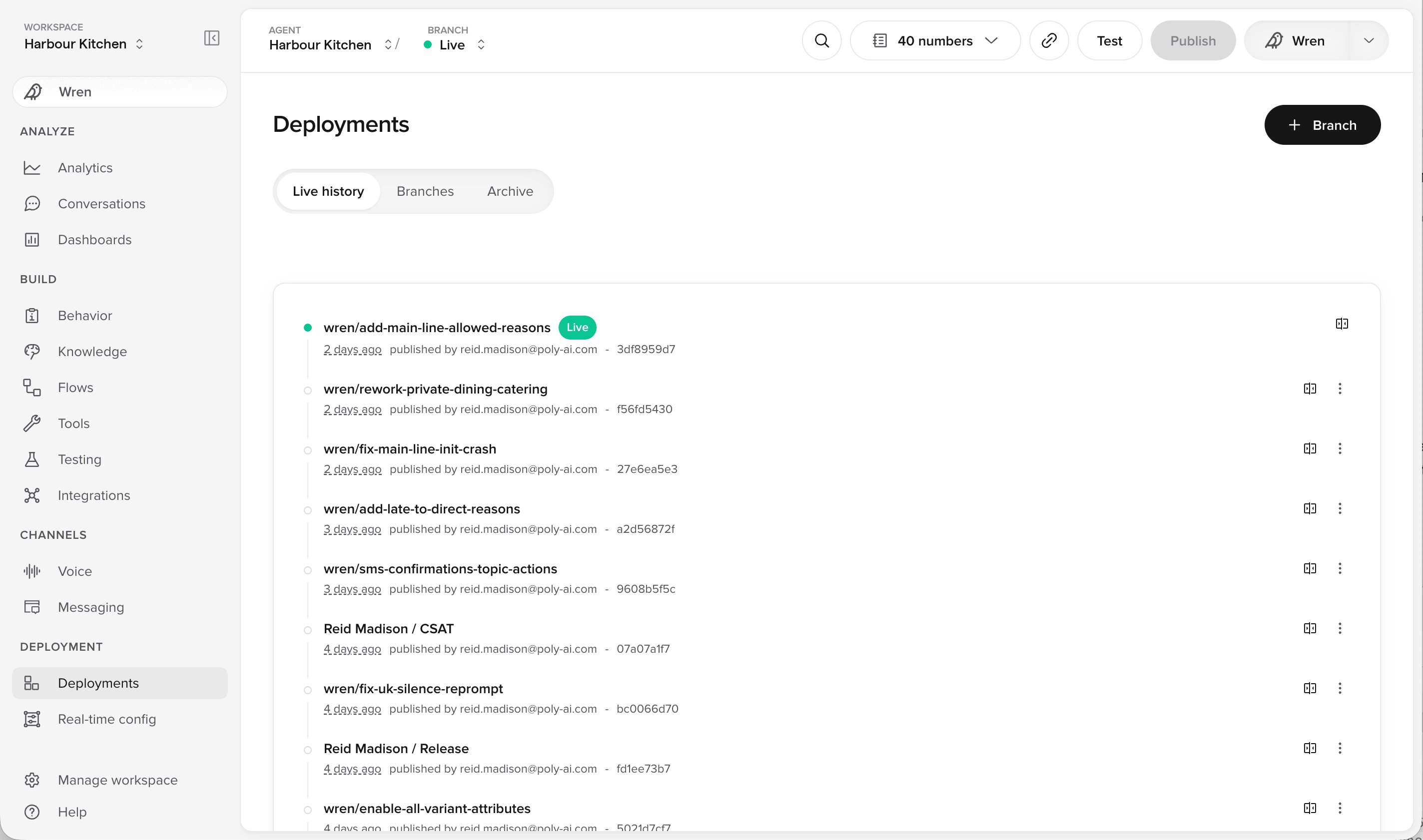
Live history on the Deployments page, with every published version in order
Sandbox
Sandbox is where you build. Every Branch and Sub-branch lives here, and nothing in Sandbox reaches a customer. You test in Sandbox from inside Agent Studio, by running simulation tests or by talking to your agent over an in-app call or chat. Your API and app connections work here, using the credentials set up for Sandbox, so integrations behave as they would for real. Sandbox has no channel connections. A channel connection is what lets a real phone number or website widget reach your agent, and each one points at a single version. Sandbox can hold many versions at once, so there would be no way to tell which should answer. Staging and Live each run one version, so that is where channel connections live.Staging
Staging holds one Branch at a time, which is what lets it have its own channel connections, such as a real phone number. Use it to test a change the way a customer would experience it, before you publish.When to use Staging
Most changes go straight from Sandbox to Live. You can already test a Branch in Sandbox over an in-app call or chat, with your integrations working as configured. Use Staging when you need to check that a real channel actually works, for example that a phone number is wired up correctly, or when you need someone without Agent Studio access to try the agent. You do not need Staging just to hear your agent. That works over an in-app call in Sandbox.Moving a Branch to Staging

Move to staging, in a Branch's actions menu on the Deployments page
1
Open the Deployments page
Find your Branch in the list.
2
Move it to Staging
Use the Branch’s actions menu.
3
Test it the way a customer would
Call the Staging number, or use whichever channel you connected. Your agent answers from that Branch, using the connections configured for Staging.
4
Publish when you are ready
Publishing works the same as it does from Sandbox. Your Branch’s changes are added onto Live.
Each project has one Staging environment, holding one Branch at a time. Moving another Branch to Staging replaces the one already there, so agree with your team who is using Staging before you move yours. Support for multiple Staging environments is coming soon.
Editing a Branch in Staging
You cannot edit a Branch directly while it is in Staging. There are two ways to change it.- Choose Remove from staging from the Branch’s menu on the Deployments page, make your change, then move it back.
- Make your edit in a Sub-branch and merge that Sub-branch into the Branch.
Side by side
Setting up each environment
Connections and credentials are configured per environment. Whatever you connect to an environment is what a test there, or a customer conversation on Live, will reach. Most teams point Sandbox and Staging at test accounts and services, and Live at production. If you are unsure what a test will reach, check how that environment is configured.Channels
Channel connections exist in Staging and Live only. Each one points at a single version of your agent, and Sandbox holds many at once.- Phone numbers. Grouped by environment under Voice > Numbers. Assign a number to Staging or Live. This needs a telephony integration between your provider and PolyAI first. See Phone numbers.
- Widgets. Chosen under Integrations > Widgets. Point a widget at Staging to test it against a Branch, or at Live for your website. Moving a widget to a different environment generates a new script tag, so re-embed it afterwards. See Configure a widget.
Integrations
Integrations work in every environment, including Sandbox, where every Branch shares one set of credentials.- Apps. Pre-built integrations under Integrations > Apps, each with a guided setup. Connect an account and pick the environment its credentials apply to. The steps differ for each app. See Integrations.
- APIs you set up yourself. Added under Integrations > APIs. Each environment gets its own base URL and authorisation, so Sandbox and Staging can reach your test services while Live reaches production. See APIs.
- Knowledge sources. Each source is enabled per environment. See Sources.
Real-time configuration
Values and schemas are set per environment, and changes take effect immediately rather than waiting for a publish. See Real-time configuration.Functions
Functions can behave differently per environment by readingconv.env. A custom handoff function can use it to transfer to a different destination in Staging than on Live. See Environment configuration.
MCP servers are the exception. They are not configured per environment, so an agent connects to the same MCP server wherever it runs.
Related pages
Deployments
How changes reach your customers, from Branch to Live.
Branches
Everyone works in their own Branch and publishes when ready.
Compare changes
See what changed before you publish.
Environments and testing FAQ
Common questions about Sandbox, Staging and Live.