

Sub-branches are for several people building one update that ships as a package. Any Branch can be split into Sub-branches, so a team can divide one piece of work between them and publish it all at once. If you have not read Branches, start there. Everything on that page applies here too. Branches and Sub-branches in Sandbox, one Branch in Staging, publishing onto Live Branches and Sub-branches in Sandbox, one Branch in Staging, publishing onto Live

What a Sub-branch is

A Sub-branch is a copy made from a Branch, rather than from Live. Each person on the team takes their own Sub-branch, works in it, and merges it back into the shared Branch when their piece is done. Once every piece is in, the team tests the whole Branch together and publishes it. Everything lands on Live at once. Sub-branches follow the same rules with their Branch that Branches follow with Live. They live in Sandbox, save as they go, and can be tested at any time. A Sub-branch cannot be split into further Sub-branches or moved to Staging. To test its changes in Staging, merge it into its Branch and move the Branch instead.
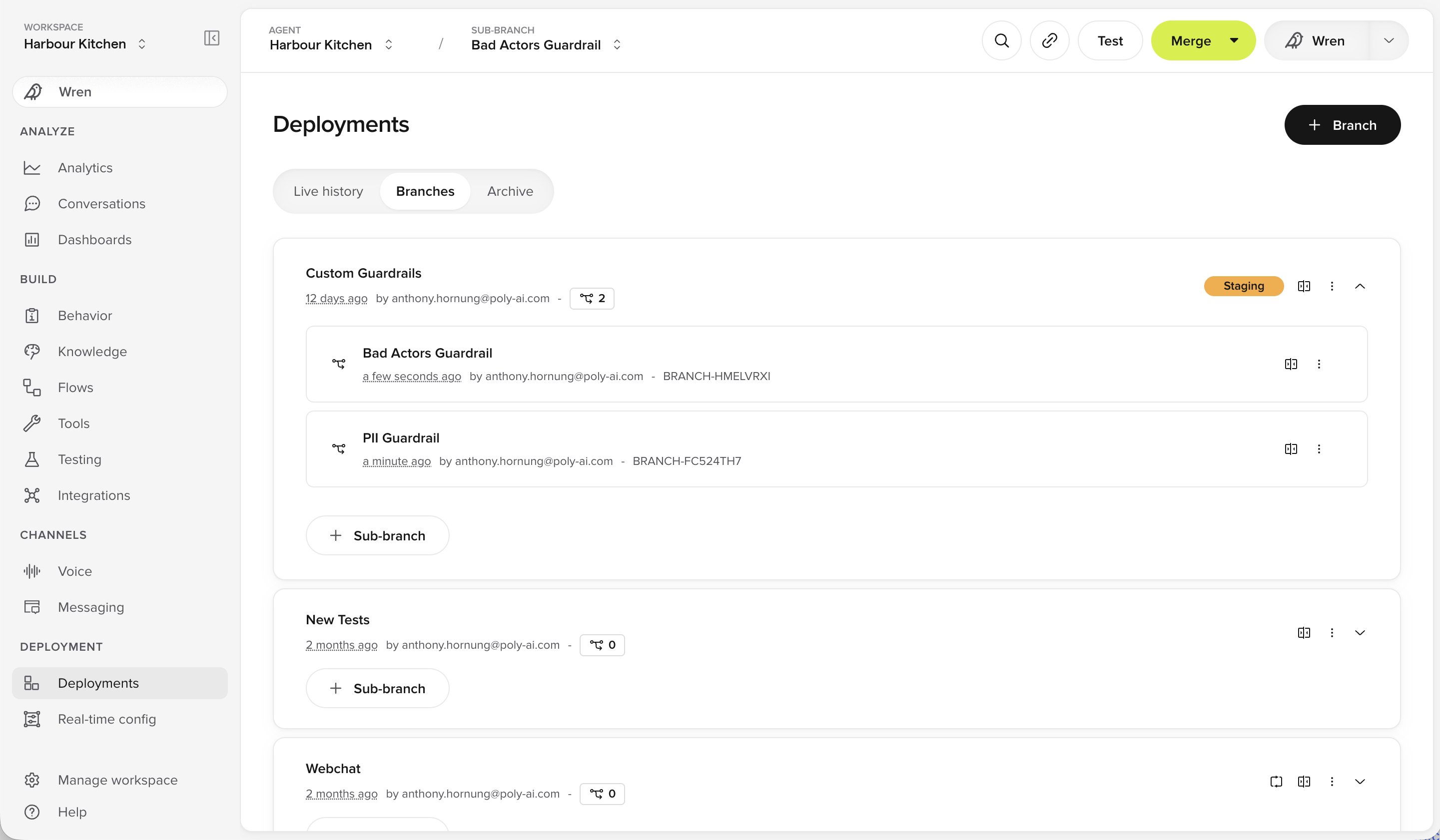
Deployments page showing a Branch with two Sub-branches nested under it, and a count of its Sub-branches

A Branch expanded to show its Sub-branches, on the Deployments page

The navigation bar at the top shows whether you are looking at Live, a Branch or a Sub-branch, and lets you switch between them.

Working on an update with several people

1

Create one shared Branch

One Branch for the whole piece of work.
2

Each person creates a Sub-branch

Every Sub-branch comes off that shared Branch.
3

Make your changes

Each person works in their own Sub-branch. It saves as you go.
4

Test each Sub-branch

Run tests on a Sub-branch to check its changes on their own before merging.
5

Merge each Sub-branch back

Merge into the shared Branch as each piece is finished.
6

Test the Branch

Test all the changes together.
7

Move to Staging (optional)

Move the Branch to Staging from its actions menu on the Deployments page, then test it the way a customer would.
Skip this step unless you need to test on a real channel.
8

Publish

Publish the Branch. Everything lands on Live at once.
If the work can ship separately, skip Sub-branches. Each person creates their own Branch and publishes on their own schedule, exactly as described in Branches.
Branches cannot merge into each other. Each one publishes to Live on its own.

Handling an out of sync Sub-branch

Out of sync works the same way as it does for Branches, with one difference. A Branch syncs with Live. A Sub-branch syncs with its parent Branch. So if a colleague merges their Sub-branch into the shared Branch before you do, your Sub-branch is marked out of sync. Sync to pull their changes into yours, resolve any conflicts, test, then merge. Until you sync, Merge with parent branch in the Publish menu is greyed out and labelled Sync with parent branch first.

When someone publishes while Sub-branches are still open

Nothing is lost. Any Sub-branch still open at that point moves to sit directly under Live and becomes a Branch in its own right. Carry on working, then publish it like any other Branch.

Checking what will change before you publish or merge

On a Branch, open the Publish menu and choose Review changes to see everything it changes since you created it. On a Sub-branch, choose Compare changes with parent branch or Compare changes with live. Either way you see the two side by side. Use it to confirm only the change you intended is there. For how to read a comparison, see Compare changes.

Undoing a publish

If a change goes wrong after publishing, put an earlier version of Live back. See Roll back a change.
Last modified on October 9, 2026