

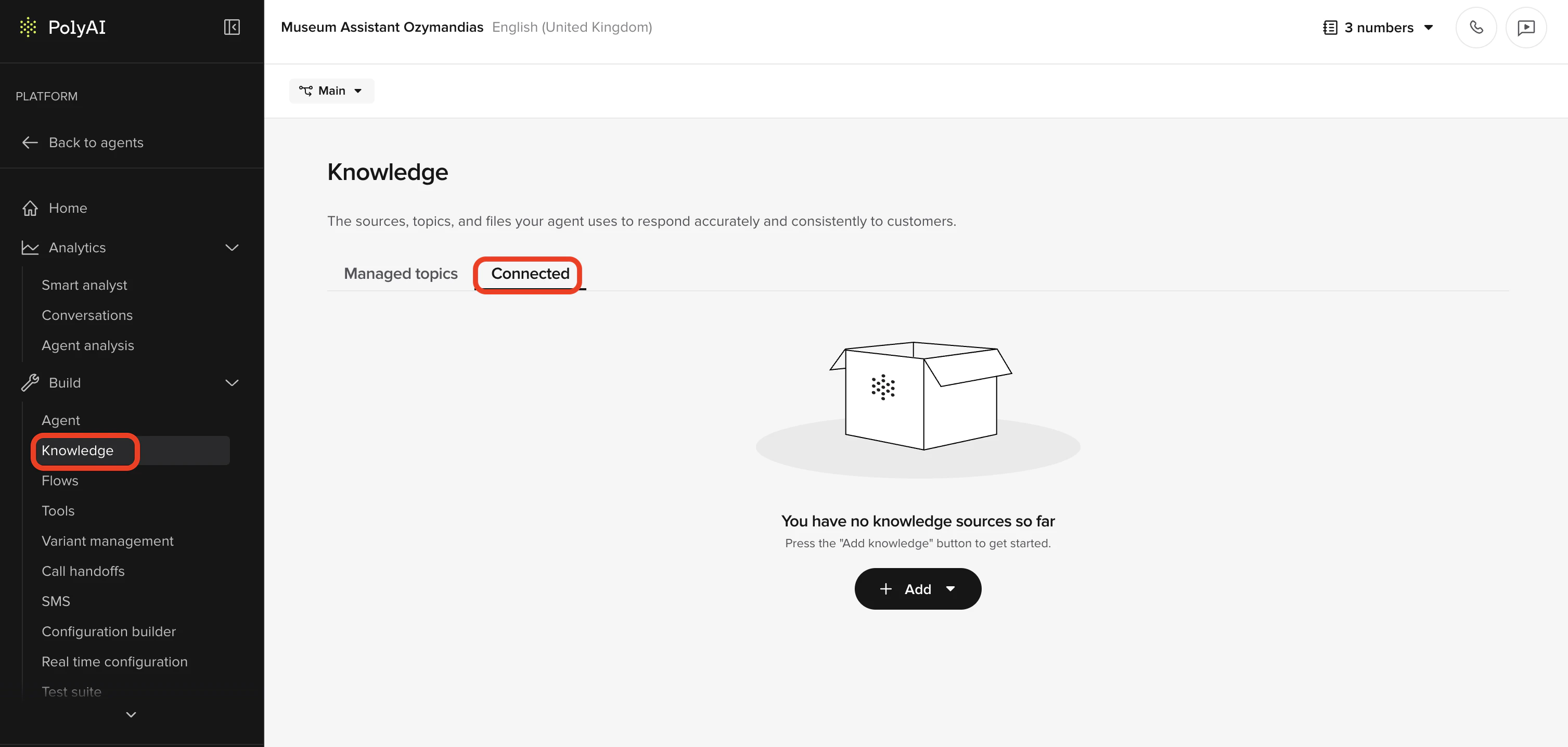
Use Connected Knowledge when you want to expose large volumes of external content quickly without curating individual topics. Use FAQs instead when you need actions, flows, or precise control over what the agent says and does. Both use RAG (retrieval-augmented generation) to match user queries.
Supported sources
- Websites
- Documents (PDF, CSV, JSON)
- Help desk systems (Zendesk, Gladly)
How Sources differs from FAQs
Both tabs expose information to your agent. Key differences:
Connected = fast import of external content. FAQs = precise control with actions and flows.
If both tabs contain conflicting information, FAQs always takes priority.
Add a new source
- Go to Knowledge > Sources tab
- Select New source
- Choose one of:
- Upload files
- Add URL
- Zendesk
- Gladly
- Additional integrations are in development – contact your PolyAI representative for the latest availability
- Complete the required details and click Add
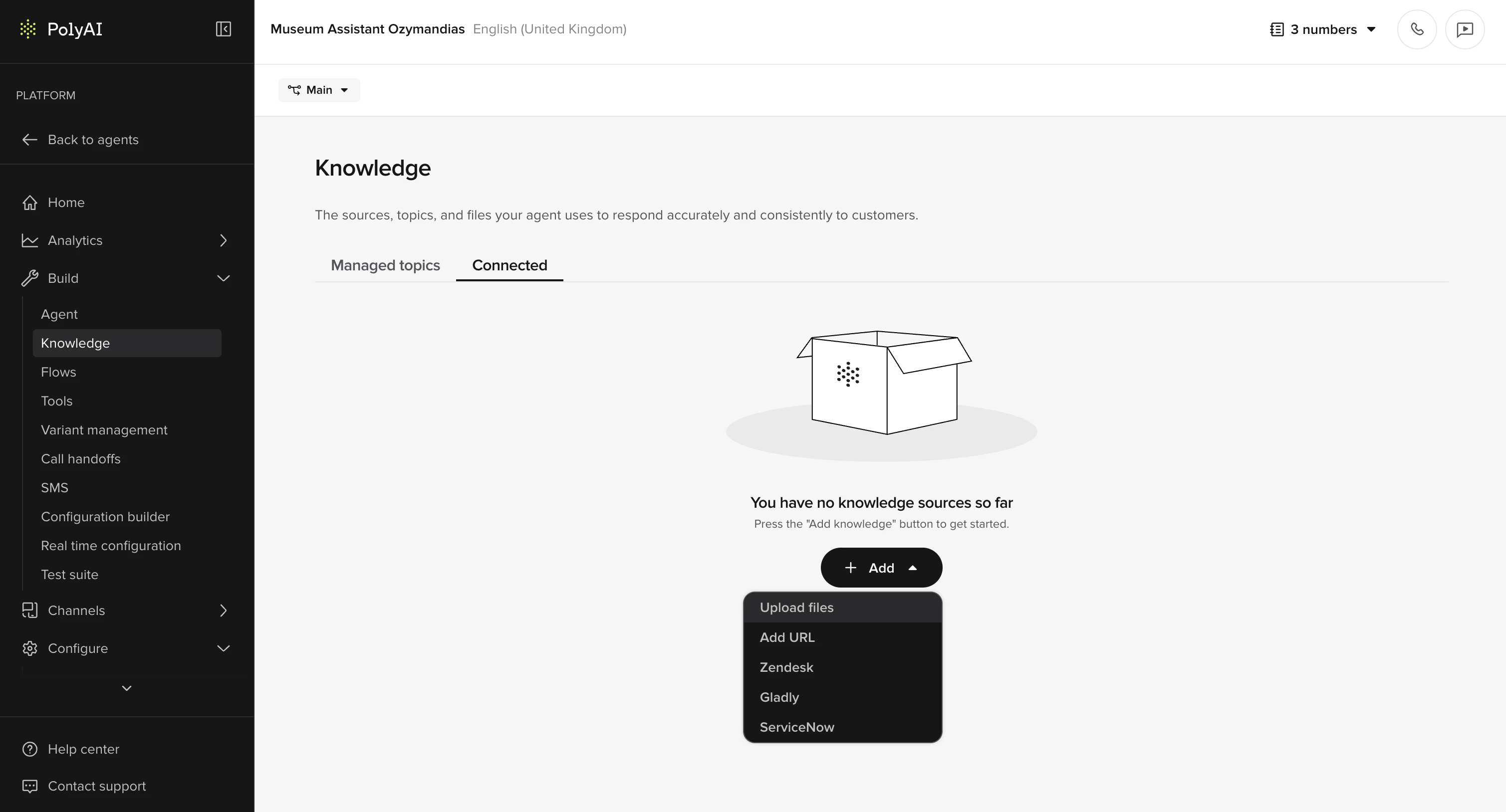
Supported source types
What exactly gets scraped when I upload a URL?
URL scraping traverses linked pages from the provided URL, with the following limits:- Depth → Only one level below the initial URL.
- Breadth → A maximum of 10 embedded pages.
Keeping content fresh
After external content changes:- click Update to re-scrape files or URLs
- or use the Sync icon per source
Group and manage sources
Group sources by product line, team, region, or document type. Sort by newest, oldest, type, or name. Each source offers:- Sync
- Rename
- Move to group
- Remove
Why isn’t my agent using the sources I connected?
Several factors affect retrieval:Data structure
Sources splits content into 2000-character chunks with 500-character overlap. Very large documents or widely separated related sections may struggle more with relevance. What to do:- Restructure documents into smaller, tighter pieces.
- Repeat key headings or terms.
- Or curate the material as a managed topic for guaranteed usage.
Update state
Two updates must be current:- Source Update → keeps the data in each source fresh
- Agent Update → applies knowledge connection changes to the agent
Environments, variants, saved changes
Each source must be enabled in the correct environment and variant. Any edits must be saved before leaving the page.Conflicting information?
If the FAQs and Sources contain conflicting data, the FAQs tab wins. Content from the FAQs tab is always prioritized.Viewing Connected Knowledge in Conversation Review
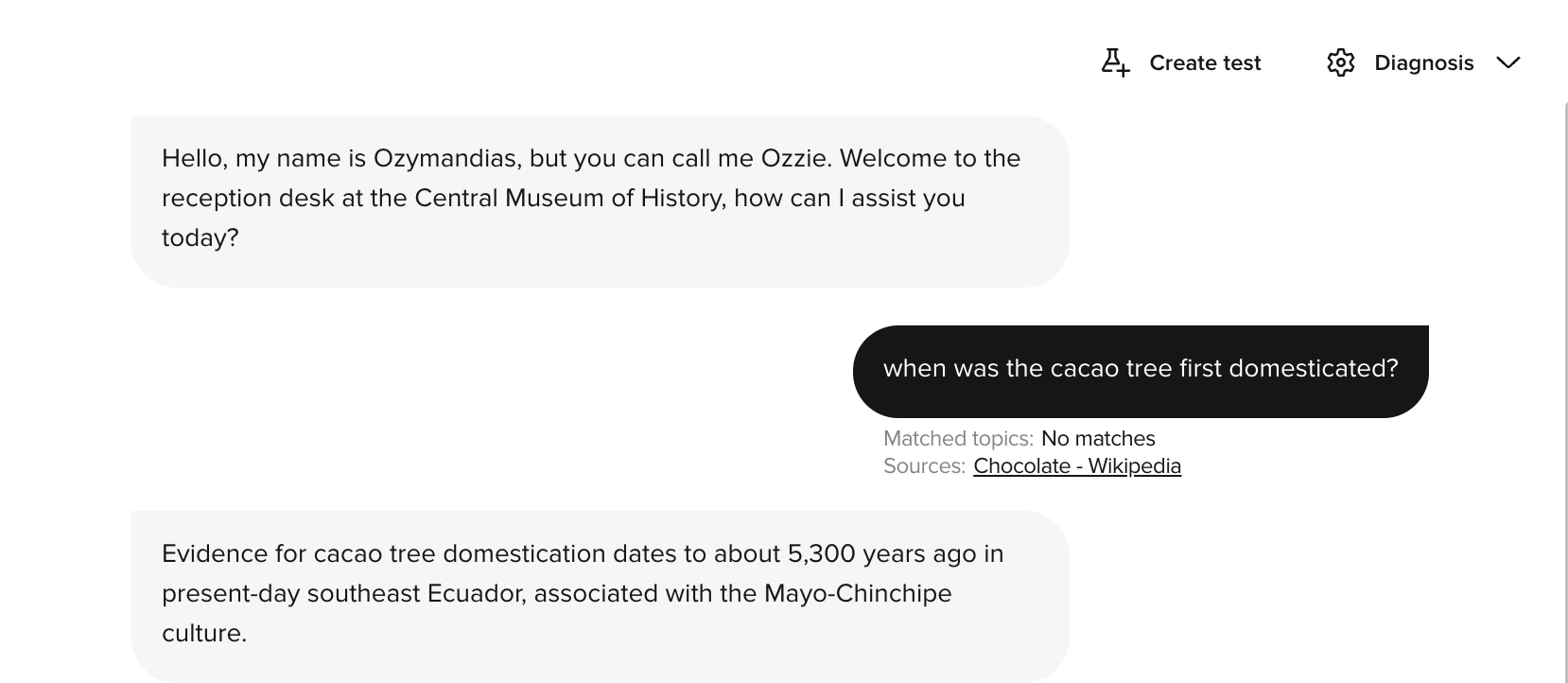
When your agent retrieves content from Connected Knowledge during a conversation, you can see exactly which sources were used in Conversation Review.- Open a conversation in Analytics > Conversations > Voice.
- In the Diagnosis dropdown, toggle Sources on.
- Each turn where Connected Knowledge was retrieved shows a Sources tag beneath the agent’s response, alongside any matched FAQs.
- Click a source name to open an inline preview panel showing the exact text chunks the agent used.
- Use Open in Knowledge in the panel to navigate directly to the source in the Knowledge area.
- Verifying the agent retrieved the correct content for a given question
- Debugging cases where the agent’s response seems inaccurate or incomplete
- Confirming that newly added or updated sources are being picked up
Behavior and configuration notes
- Use PolyAI’s Raven LLM for best results – it paraphrases structured and unstructured content more naturally.
- Sources results are given ranking priority to ensure they surface alongside FAQs.
- Sources and FAQs data are merged at runtime.
- Any system-prompt style guidance applies to both.
Related pages
FAQs
Create curated topics alongside connected sources. FAQs always take priority.
RAG overview
Understand how retrieval-augmented generation works across your knowledge.
Conversation diagnosis
Verify which knowledge sources were retrieved on each turn.