

conv.write_metric – the agent does not write metrics on its own. Once written, metric values flow into Dashboards, Smart Analyst, and the Conversations API.
Metric types
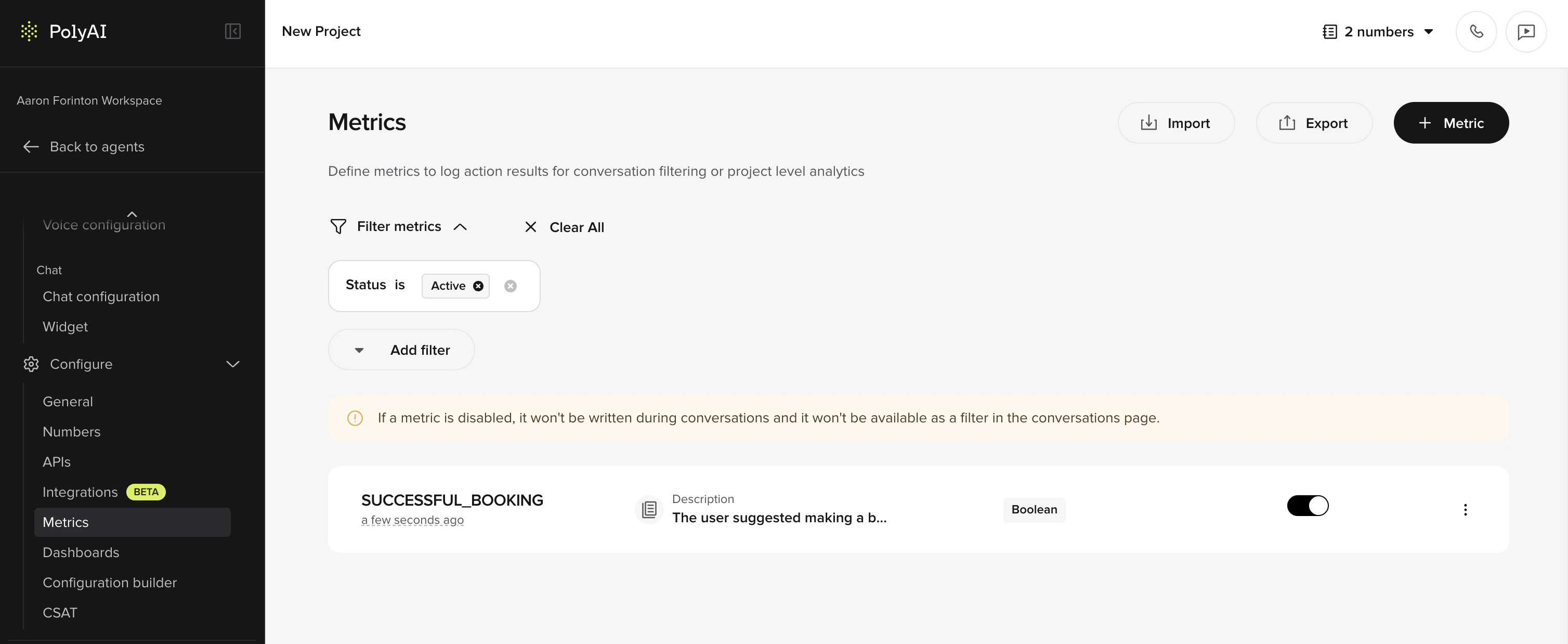
Metrics can be boolean (true/false) or categorical depending on your configuration. Boolean metrics answer a yes/no question – for example, “Was the caller authenticated?” – while categorical metrics assign a label from a set of options. When creating a metric, be clear about which type you’re defining so that results are consistent and easy to interpret.Creating a metric
Add a new metric
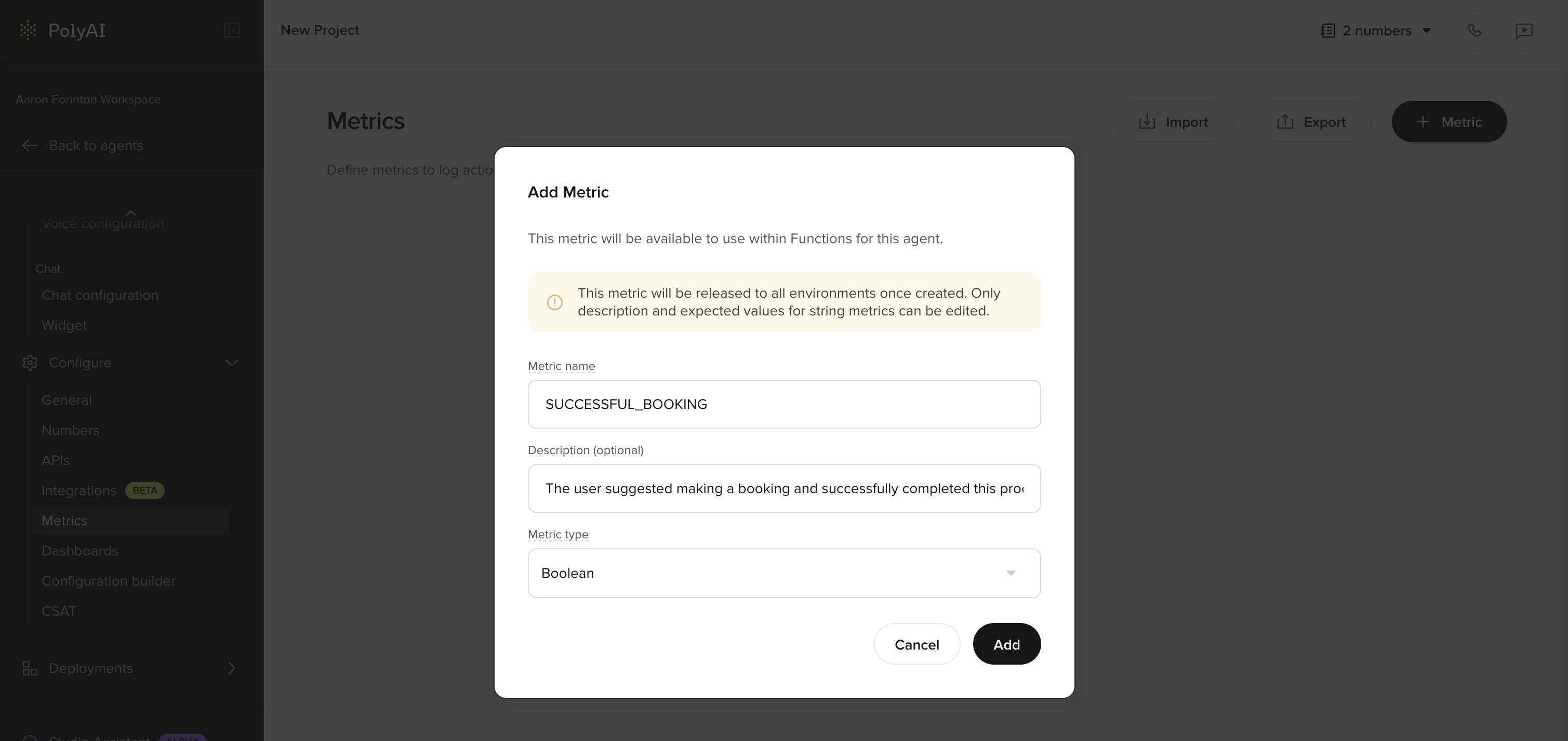
Click Add metric and provide:
- Name – a short, descriptive label (e.g. “Booking completed”, “Caller authenticated”)
-
Definition – a clear description of what this metric measures and how it should be evaluated
Naming conventions
Consistent naming makes metrics easier to find, compare, and reference across dashboards, Smart Analyst, and API exports.- Use a consistent format – pick one casing style (e.g.
Booking completedorBOOKING_COMPLETED) and apply it across all metrics in a project - Avoid synonyms – choose one term and stick with it. For example, use
Handoffconsistently rather than alternating between “handoff”, “transfer”, and “escalation” - Be descriptive but concise – the name should make sense at a glance in a dashboard or filter dropdown
- Prefix related metrics – if you have multiple metrics for one flow, group them with a shared prefix (e.g.
Auth: verified,Auth: failed,Auth: partial)
Writing effective definitions
The metric definition is a note for whoever is building or maintaining the project. It is not seen by the agent at runtime and is not used by Smart Analyst when evaluating conversations – metric values are recorded only viaconv.write_metric. A clear definition still matters because it gives builders a shared, unambiguous understanding of what the metric represents and when it should be written.
Be specific about the outcome
| Less effective | More effective |
|---|---|
| ”Check if the call went well" | "The caller’s issue was fully resolved without a handoff to a human agent" |
| "Booking metric" | "A reservation was successfully created, confirmed with the caller, and an SMS confirmation was sent" |
| "Authentication" | "The caller was verified using at least two identifying details (e.g. name and date of birth, or account number and postcode)“ |
Define success and failure
Where relevant, define what does not count as a success alongside what does. This reduces ambiguity for builders writing the function logic that callswrite_metric.
For example, an authentication metric might specify:
- Success: the caller provided their name and date of birth, and the system confirmed a match
- Failure: the caller could not provide sufficient details, or the system could not verify the information
- Partial: the caller provided one identifier but the second could not be confirmed
Specify when the metric applies
The definition should make clear at what point in the conversation the metric is meant to be written, so builders know where in the flow to callwrite_metric.
For example:
- “Write this metric only after the agent determines the caller is eligible for the loyalty program” – not from the start of every call
- “Write this metric once the booking flow has completed” – not based on whether the caller mentioned a booking
Additional tips
- If the metric depends on a specific flow or function, mention it by name in the definition
- For boolean metrics, state the exact condition that should make the metric
true - Keep definitions self-contained – avoid referencing other metric definitions
Metrics and Smart Analyst
Smart Analyst can sample conversations based on the metric values you have written viawrite_metric and use those values when answering natural-language questions. Smart Analyst does not see the metric definition itself – the quality of its insights depends on whether the right metrics are being written, with the right values, at the right point in the conversation.
Once metrics are being written reliably, you can:
- Sample conversations where a specific metric succeeded or failed, rather than relying on random sampling
- Ask questions like “Why are calls failing the authentication metric?” and get targeted answers
- Track metric trends across recent conversations without writing queries
Logging metrics from functions
Custom metrics are not written automatically by the agent at runtime. They are only recorded when you explicitly callconv.write_metric from a function. This is useful when a metric depends on function output – for example, confirming that an API call succeeded or a payment was processed.
Where metrics appear
Once defined, custom metrics are available across several parts of the platform:| Location | How metrics are used |
|---|---|
| Dashboards | Visualize metric trends over time. Custom metrics appear in Standard and Custom dashboards. |
| Smart Analyst | Sample conversations by metric value. Ask natural-language questions about metric performance across recent calls. |
| Conversations API | The metrics field on each conversation object contains your custom metric results, available for export to external analytics pipelines. |
| Conversation review | Filter and browse conversations by metric outcomes. |
Enabling metrics for API responses
Custom metrics only appear in Conversations API responses if they are explicitly enabled in the project configuration. To enable them:- Go to the API Keys tab on the workspace homepage and select Configuration.

- Find your project and select the response metrics you want included in API responses. You can choose All metrics or pick individual metrics such as
CALL_IN_PROGRESS,CALL_COMPLETED,HANDOFF_TO, andHANDOFF_REASON. You can also toggle Conversation transcript access.
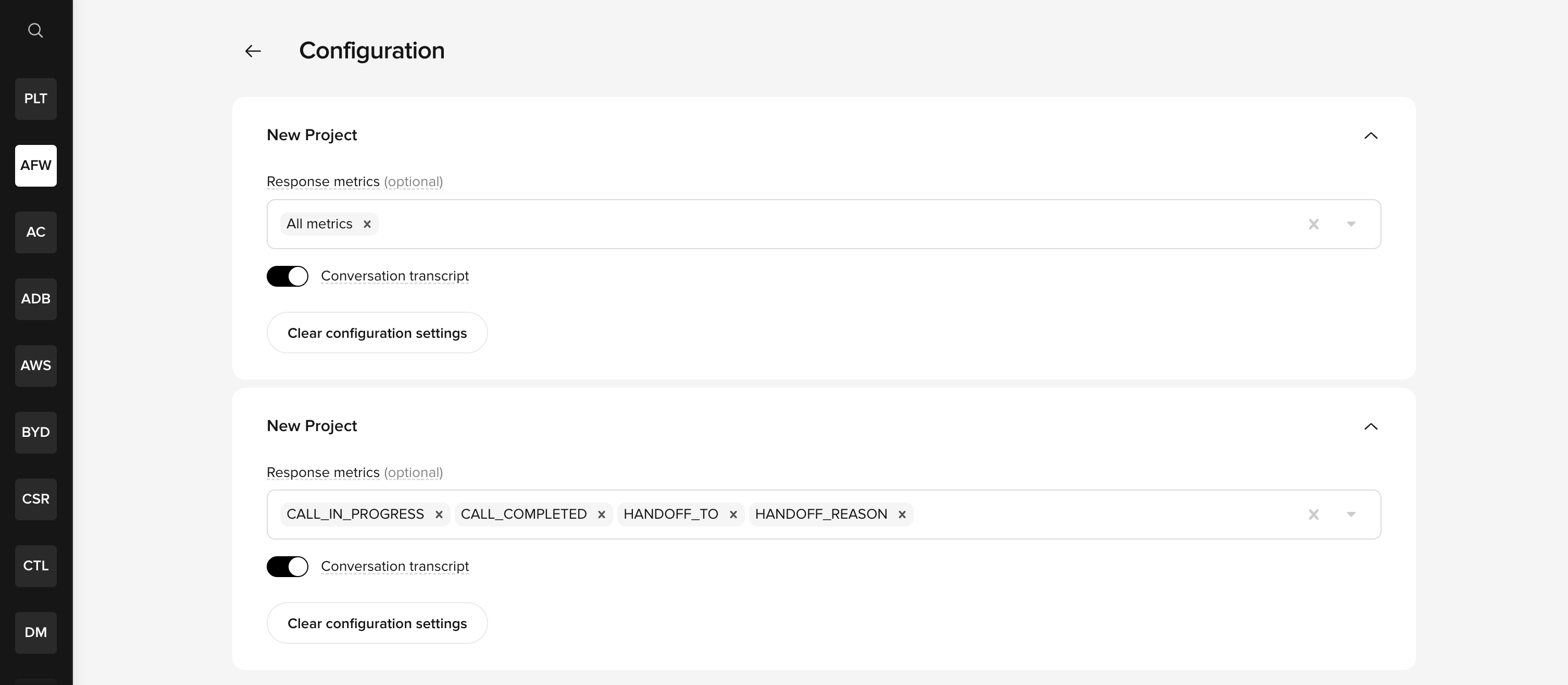
These settings apply at the project level, not per API key. For data to appear in an API response, both conditions must be met: the API key must have the relevant permission and the project must have the metric enabled. See API keys for key setup details.
Related pages
- Dashboards – visualize your metrics
- Smart Analyst – query conversation data using natural language
- Agent Analysis – LLM-powered call categorization
- Conversations API – export metric data programmatically
- Conversation object – log metrics from functions