

This page is available to Enterprise customers only.
Troubleshoot first
Check common issues
Review the common issues table for quick fixes to frequent problems like missing edits, failed handoffs, or broken imports.
Review the FAQ
The FAQ covers questions about topics, rules, actions, and agent configuration.
Diagnose the conversation
Use conversation diagnosis to inspect function calls, flows, topic citations, and turn latency for a specific call.
Check your environment
Confirm you’re looking at the right environment. Changes saved in Sandbox aren’t live until promoted.
Contact support
If the steps above don’t resolve your issue, you can reach the PolyAI support team by email or directly from the UI.Email support
Open a pre-filled email to servicedesk@poly-ai.com with the details the team needs to help you.
Contact support from the UI
You can also open a support request directly from Agent Studio. Click the Support Hub button in the bottom-left corner of the page.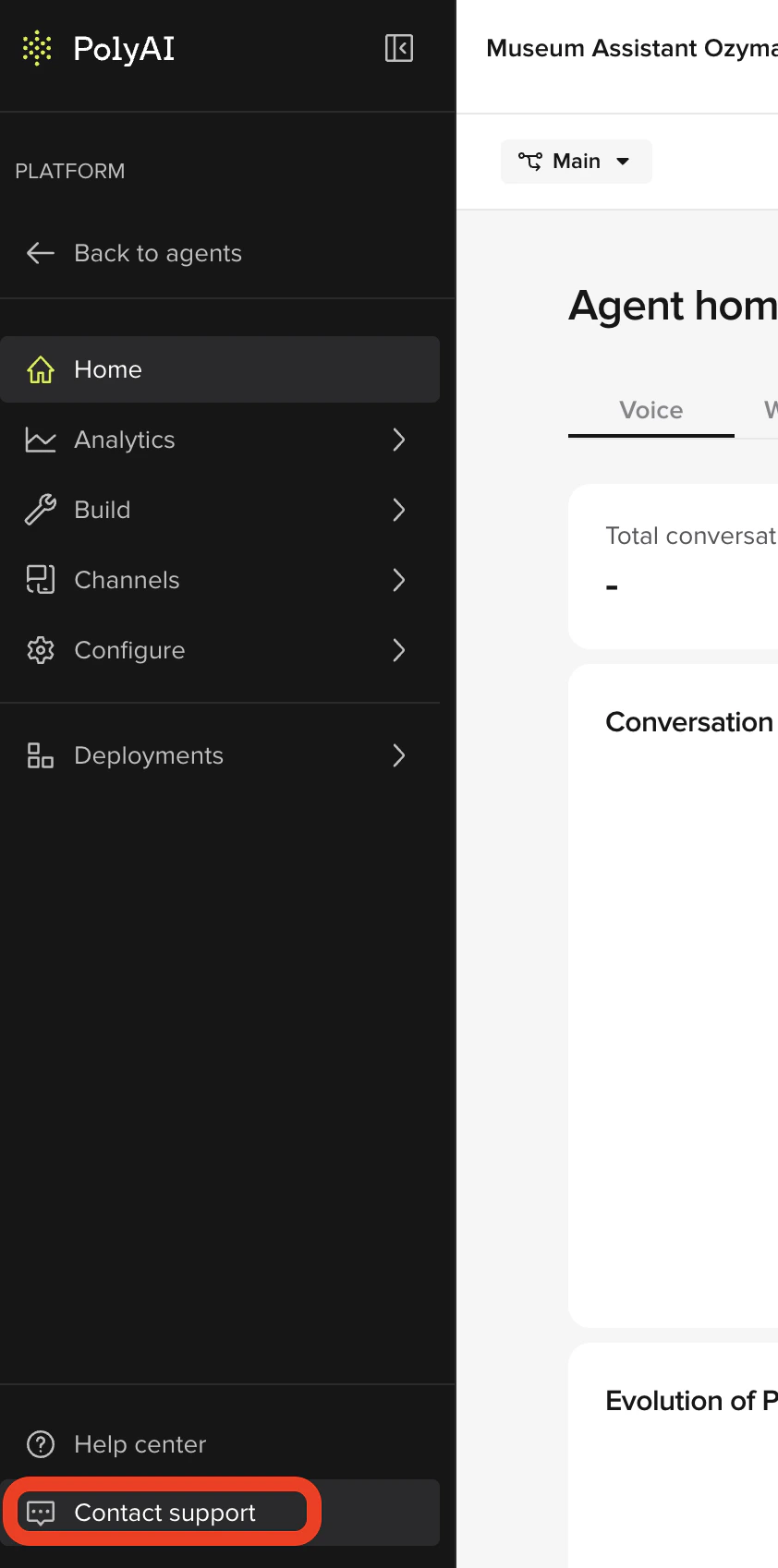
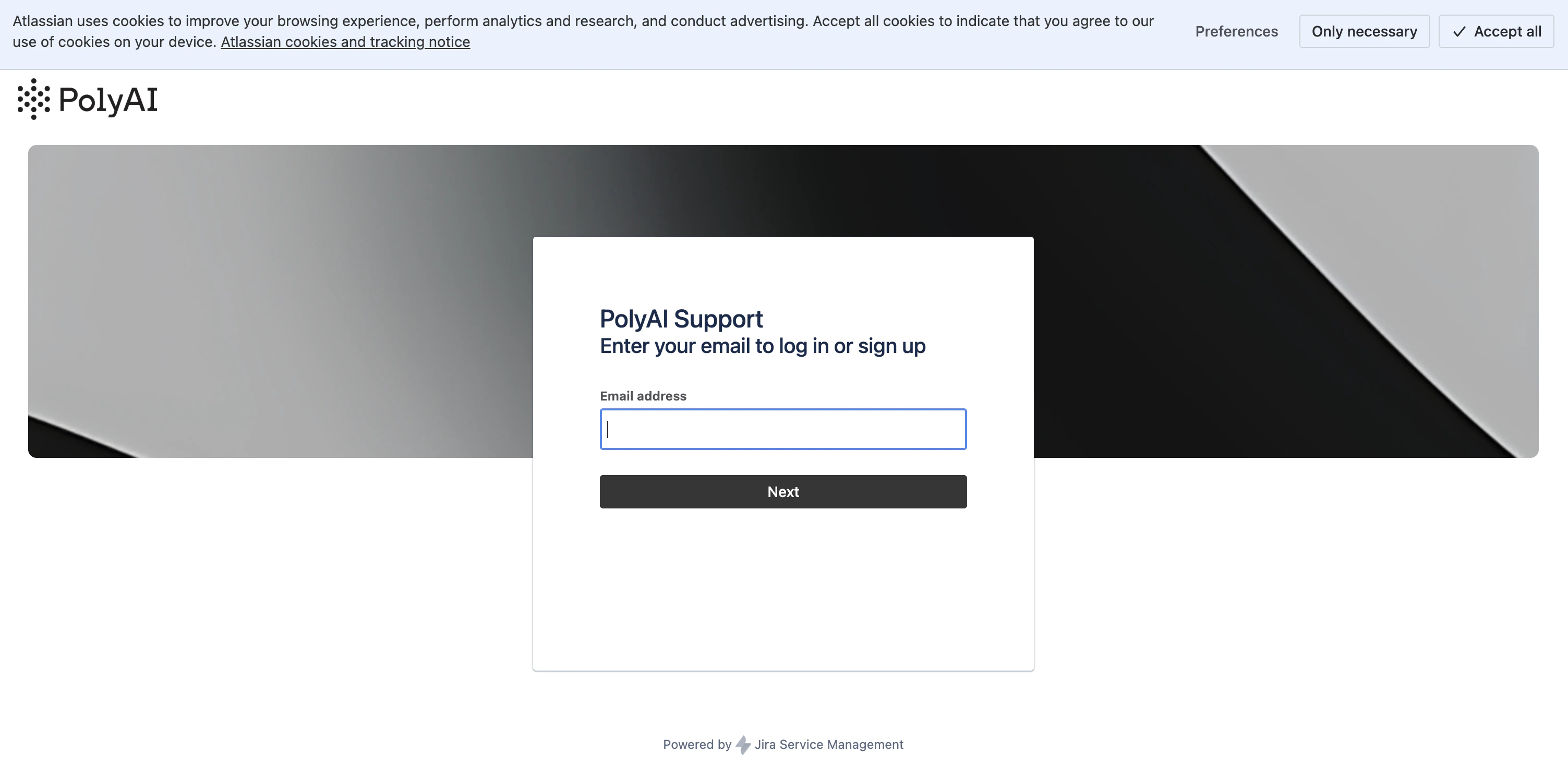
- Project link — a URL to the relevant project in Studio
- Environment — Sandbox, Pre-release, or Live
- Call ID — from the Conversations page, if applicable
- Description — what you expected vs. what happened
- Steps to reproduce — how to trigger the issue
Choose the right priority
When you raise a support ticket, select the priority level that matches your situation. Using the correct priority ensures the right response time and avoids delays for critical issues.P1 — Urgent
You cannot access or use your virtual agent at all. The service is completely unavailable or critically impaired, causing immediate and significant business impact. Resolution target: 4 hours Examples:- Your virtual agent is not picking up any calls
- All callers are being dropped immediately after connecting
- The phone number rings but never connects to the agent
- Complete outage across all skill groups
P2 — High
A major piece of functionality is not working as expected. The virtual agent is only partially usable, with significant impact to key capabilities. Resolution target: 8 hours Examples:- A reservation or booking flow is failing for all callers
- Transfers to your most-used queue are not completing
- A core intent (e.g. “cancel my order”) is consistently not recognized across many calls
- A critical integration (e.g. CRM lookup) is returning errors for every call
P3 — Medium
An error or functional issue is affecting part of the virtual agent. The issue causes moderate business impact and may allow a workaround. Examples:- A few customers have reported the agent misunderstood them on a specific question
- An intent occasionally fails but works when tested
- A single, lower-volume skill group is behaving unexpectedly
- You’ve spotted an isolated wrong response in call recordings
P4 — Low
The issue does not significantly impact business operations. It may relate to minor defects, non-critical functionality issues, or general service requests.What to expect after you raise a ticket
Once you submit a support request, here’s how the process works:Response and resolution times
| Priority | First response | Resolution target |
|---|---|---|
| P1 — Urgent | Immediate | 4 hours |
| P2 — High | Within SLA window | 8 hours |
| P3 — Medium | Within SLA window | As soon as possible |
| P4 — Low | Within SLA window | As soon as possible |
Ticket statuses
Your ticket moves through these statuses as the support team works on it:| Status | What it means |
|---|---|
| Open | Your ticket has been received and is in the queue |
| In Progress | A support engineer is actively working on your issue |
| Waiting for Customer | The support team needs more information from you — check your email for questions |
| Resolved | The issue has been fixed or the question answered |
Support availability
PolyAI support is available every day, including weekends and public holidays.Report a bug
If you believe you’ve found a product bug:- Reproduce the issue and capture screenshots or relevant logs.
- Note your browser (e.g. Chrome, Safari) and environment (Sandbox, Pre-release, or Live).
- Email servicedesk@poly-ai.com with the details above.