

This page covers connecting Agent Studio to third-party MCP servers as a client. PolyAI does not currently expose its own MCP server for external tools to connect to your agents.
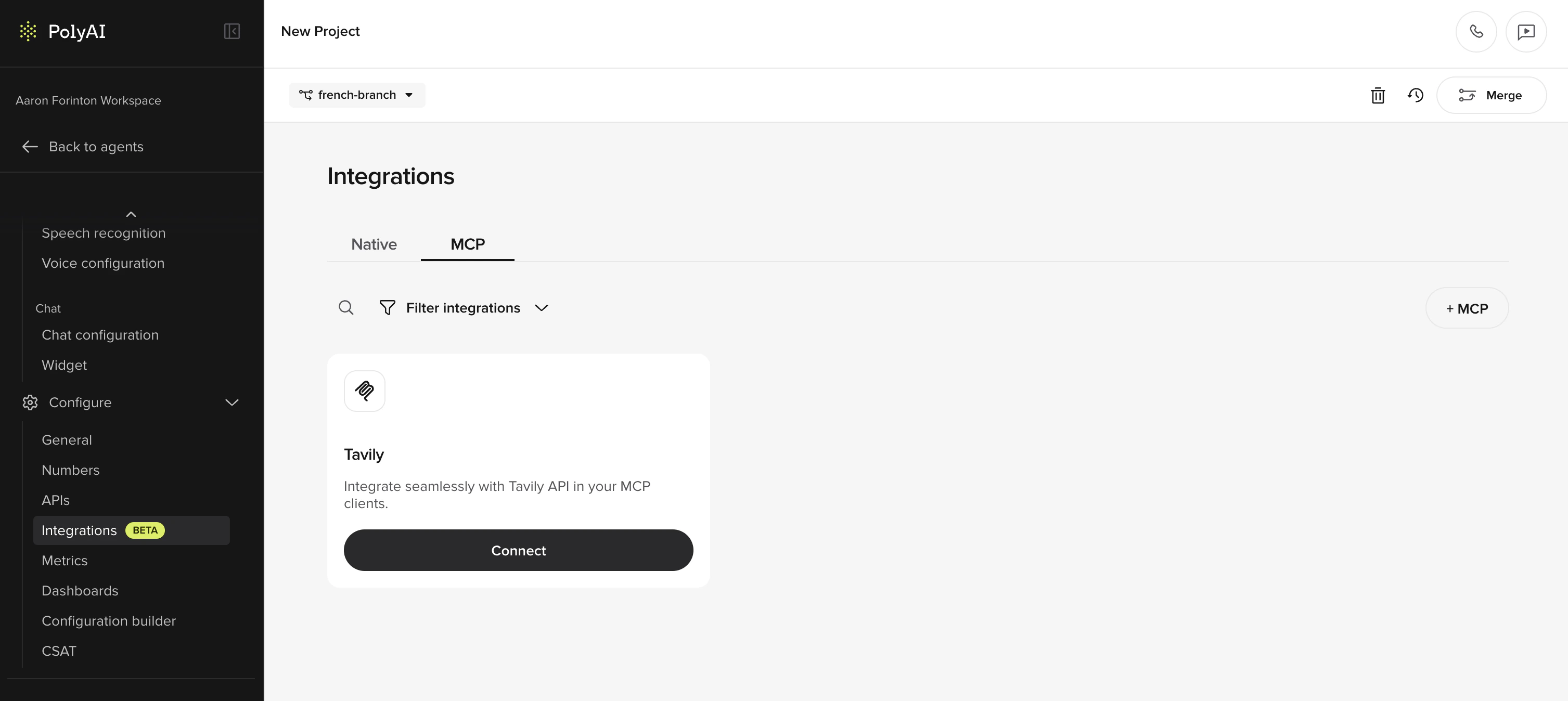
This feature is available from Integrations in Agent Studio under the MCP tab.
How it works
When you add an MCP server, Agent Studio connects to the server endpoint and discovers the tools it exposes. Each tool has a name, description, and input schema defined by the server — you don’t need to configure these manually. During a conversation, your agent can call any enabled MCP tool. The flow is:- Discovery — Agent Studio sends a discovery request to the MCP server URL and receives a list of available tools with their schemas.
- Configuration — You review the discovered tools and toggle on the ones your agent should use.
- Execution — When the agent decides to use a tool during a conversation, Agent Studio sends a tool call to the MCP server with the appropriate authentication and waits for a response (up to the configured timeout).
- Response — The MCP server runs the tool and returns the result. The agent uses the response to continue the conversation.
When to use MCP
MCP integrations let your agent act as an MCP client that connects to external MCP servers. Instead of writing custom functions and API configurations, you point Agent Studio at an MCP server URL and the platform discovers the available tools automatically. Common use cases include:- Connecting to internal business systems that expose MCP endpoints
- Adding third-party tool capabilities to your agent
- Reusing tools across multiple agents without duplicating code
Prerequisites
- You must have the Admin role in Agent Studio. If you don’t have admin access, ask an existing admin to update your role.
- The MCP server must be accessible over HTTPS
- If the server requires authentication, you need the credentials and a secret stored in the Secrets Vault with access granted to your project
Add an MCP integration
Add a new MCP server
Click Add MCP integration. In the modal, configure:
| Field | Description |
|---|---|
| MCP server URL | The HTTPS endpoint of the MCP server (e.g., https://mcp.example.com) |
| Timeout | How long to wait for the server to respond, in seconds (1–30, default 10) |
| Authentication type | Optional. Choose Header, Query parameter, or OAuth depending on how the server authenticates requests |
Configure authentication (if required)
Select an authentication type and fill in the required fields:
- Header
- Query parameter
- OAuth
Send a secret value in an HTTP header.
| Field | Description |
|---|---|
| Header name | The header the server expects (e.g., X-API-Key) |
| Secret name | A secret from the Secrets Vault that contains the credential |
Connect
Click Connect. Agent Studio discovers the tools available on the MCP server and displays them in the configuration panel.
Use MCP tools in prompts
Once an MCP server is connected, discovered tools are available to the LLM in step prompts. There are two approaches.Basic usage
Name the tool and give a brief description of what it does. The LLM reads the tool’s input schema directly from the MCP server, so you don’t need to specify parameters.Advanced usage
For complex tools where the LLM may struggle with correct inputs, you can specify the expected parameters explicitly in the prompt:Whitelisting tools by URL
You can restrict which tools are exposed by the MCP server using thetools query parameter in the server URL:
Manage MCP integrations
After connecting, you can:- Edit settings — Click an MCP integration card to open the configuration panel and update the server URL, timeout, or authentication
- Refresh tools — Click Refresh in the configuration panel to re-discover available tools from the server
- Toggle tools — Enable or disable individual tools without disconnecting the server
- Disconnect — Remove an MCP integration entirely. Your agent will no longer have access to its tools
Troubleshooting
Connection fails
Connection fails
Verify that the MCP server URL is correct and accessible over HTTPS. Check that any required authentication credentials are configured and that the associated secret has access to your project.
No tools discovered
No tools discovered
The MCP server may not expose any tools, or the discovery request may have timed out. Try increasing the timeout value and clicking Refresh.
Tools not available to the agent
Tools not available to the agent
Confirm that the tools are toggled on in the configuration panel. Only enabled tools are accessible during conversations.
Migrating from experimental config
Migrating from experimental config
Projects that previously configured MCP through experimental config will continue to work – existing servers keep running in the background. The old config is only replaced when you add a new MCP server through the Integrations UI. Once migrated, manage all MCP servers from the UI.