

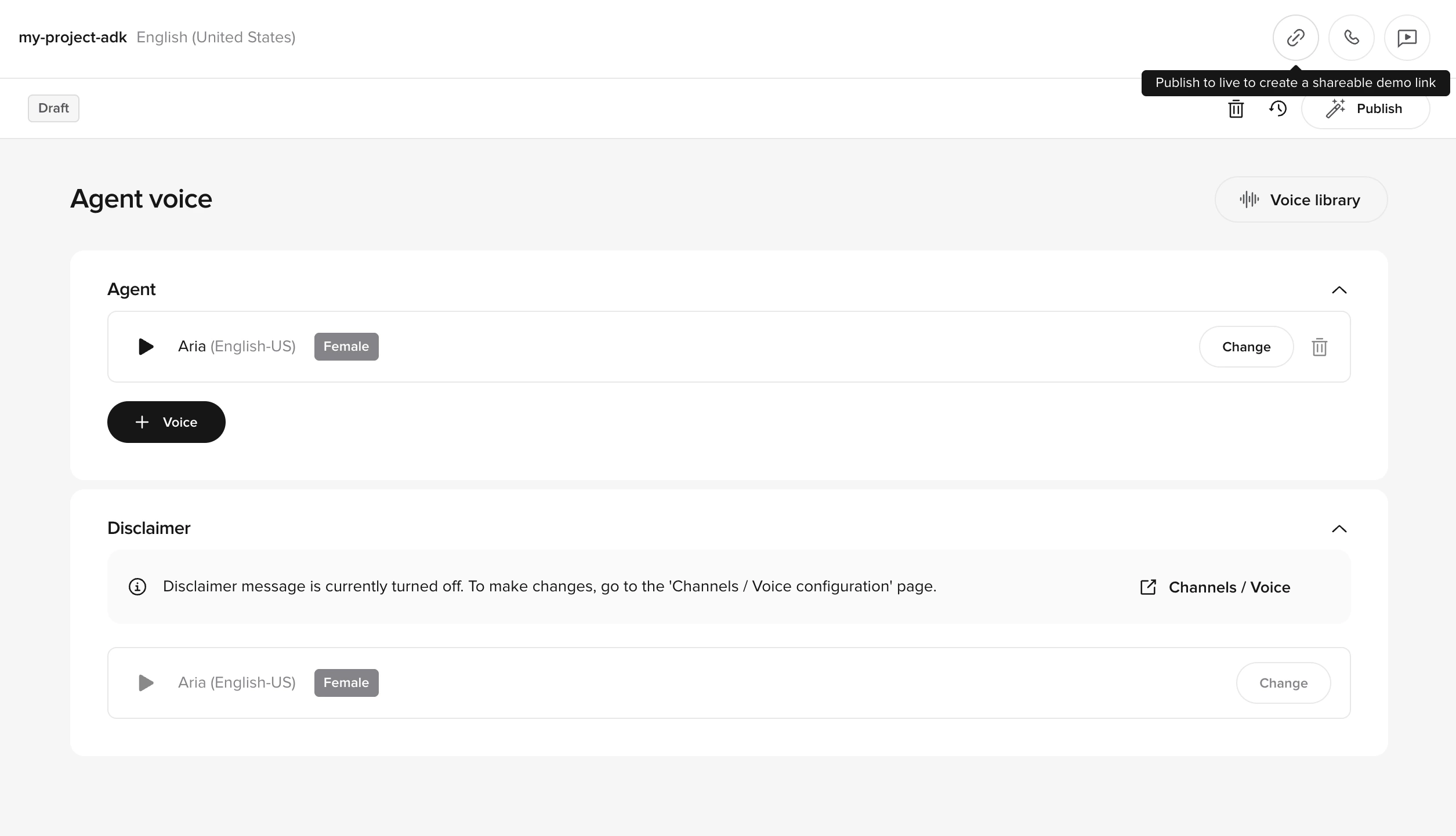
Voice sections
The page displays two voice configurations:| Section | Purpose |
|---|---|
| Agent | The main voice your users interact with during calls |
| Disclaimer | A separate voice for legal or informational disclaimers |
Selecting a voice
- Click Change next to either the Agent or Disclaimer section.
- The Voice library opens.
- Browse voices using the Explore tab or access saved voices in Favorites.
- Filter by language, region, and gender.
- Preview voices with custom text before selecting.
- Click Select to apply the voice.
Voice settings
Fine-tune the selected voice’s parameters:- Click the Settings icon next to the voice.
- Adjust the sliders in the Voice Settings popup:
Controls how consistent the voice sounds over time. Higher values keep tone and delivery more uniform across responses.Recommended: Set to 0.7 or above for reliable performance.
Adjusts how closely the generated voice matches the original recording. Higher values sound more realistic and detailed, but may be less resilient to unexpected prompts. Lower values smooth the voice slightly, making it better suited for dynamic or ASR-driven content.
Controls stylistic expressiveness of the voice (0.0–1.0). Higher values produce more expressive speech with varied intonation. Lower values keep delivery more neutral and consistent. Only supported by certain TTS providers and voice models.
- Click Done to save changes.
Publishing changes
After updating voice settings:- Review your configuration on the Agent Voice page.
- Click Publish in the top right corner to apply changes to your live agent.
Disclaimer voice configuration
If disclaimer audio is configured separately, the page provides a link to Channels > Voice > Voice Configuration for those settings. The Disclaimer voice is optional. If not configured, the Agent voice handles all agent speech.Related pages
Voice library
Browse and select voices
Choosing a good voice
Guidelines for voice selection and matching
Voice configuration
Configure greeting and disclaimer settings
Add a voice
Configure custom voices programmatically